
Quick answer
A webcam test for camming should produce a recorded benchmark, not merely confirm that a picture appears. Test the delivered resolution and frame rate, autofocus recovery, low-light noise, motion blur, field of view, audio sync, and recognition in every supported browser. Score the same camera, lighting, computer, and connection against predefined acceptance criteria. Keep it if all critical checks pass, configure and retest correctable failures, or return it when hardware-level failures persist.
Decide whether the webcam is commercially usable, not merely functional
Accept the webcam only if it delivers a stable, flattering, synchronized stream in the exact environment where it will earn money. A device can work perfectly as office-call hardware and still fail at close movement, low light, private-room framing, or browser capture.
Start with the viewing experience rather than the specification sheet. Resolution describes captured dimensions, but lighting, exposure, focus behavior, compression, USB bandwidth, and browser constraints determine what reaches the screen. A sharp static face can hide smeared hand movement; a bright preview can hide pulsing exposure; correct audio can drift after a longer recording. That is why choosing the best camera for camming and accepting a delivered unit are separate decisions. The first narrows the hardware; the second proves that the particular setup works.
- Critical gates: browser recognition, uninterrupted capture, usable focus, and acceptable audio sync.
- Quality gates: delivered detail, stable frame cadence, controlled noise, clean motion, and workable field of view.
- Operating rule: record every test under repeatable lighting and camera placement, then keep the files for comparison.
- Decision rule: pass when every critical gate succeeds; configure and retest software-sensitive failures; return hardware with persistent critical failures.
Run this webcam test for camming as an acceptance matrix
Use one matrix with observable pass conditions. The thresholds below are explicit benchmark assumptions for a typical HD camming setup, not universal platform requirements; replace them when your site, format, or production standard demands something different.
Record locally through the same browser capture path used for live sessions. Confirm what the browser actually delivers rather than what the camera box promises. Keep lighting, distance, framing, microphone, and background fixed. Where available, inspect the active track settings for width, height, and frame rate, then verify the picture by watching the recording at normal size.
| Check | Test action | Assumed pass condition | Failure meaning |
|---|---|---|---|
| Delivered video | Inspect active capture and recording | At least 1920×1080 at 30 fps | Constraint, driver, port, or camera issue |
| Autofocus | Move back, then return to mark | Sharp again within 2 seconds without repeated hunting | Unreliable focus behavior |
| Low light | Dim the key light to planned minimum | Face remains usable without strong color blotches or exposure pulsing | More light or different camera needed |
| Motion | Wave, turn, and lean at show pace | No distracting smear or cadence jumps | Exposure too slow or frame delivery unstable |
| Field of view | Frame all planned positions | Required area fits without severe edge distortion | Placement or lens is unsuitable |
| Audio sync | Clap once, speak, and review | Clap and lip movement remain visibly aligned | Capture-path or device timing problem |
| Browser recognition | Open the production capture page | Correct device appears and reconnects after permission restart | Permission, driver, or compatibility problem |
The matrix is deliberately unforgiving about critical failures and flexible about aesthetics. Slight noise may be acceptable for an intimate low-light format, while autofocus hunting is rarely charming when a paid interaction depends on eye contact. Conversely, a wide lens that suits fitness coaching may expose too much of a small cam room. Apply the same protocol to the camera settings for camming you intend to publish, because automatic controls can make one test look excellent and the next look unrelated. Save both the pass and failure takes so future configuration changes have a baseline.
How do you score a camera and reach a keep, configure, or return decision?
Score each matrix row as pass or fail, but do not let a strong total conceal a critical failure. The useful result is a diagnosis: keep when all gates pass, configure when failures have plausible software or room causes, and return when a critical hardware-level problem survives a controlled retest.
Consider this explicitly hypothetical test: a creator gives one point for each of seven checks, making seven points available. The camera delivers the assumed 1920×1080 at 30 fps, produces acceptable low-light footage, handles motion, fits the room, keeps audio aligned, and appears correctly in the supported browsers. It earns six points because autofocus takes an assumed four seconds and hunts twice. The raw result is 6 ÷ 7 = 85.7%, but the decision is “configure,” not “keep,” because focus is a critical gate. The creator disables continuous autofocus, sets focus manually at the performance mark, records again, and keeps the unit only if the repeated take stays sharp.
Test with the performance format, not a neutral video-call pose. A creator comparing public vs private cam shows may need both full-room movement and close conversational framing. Someone using a cam model booking system may also need the camera to reconnect predictably when scheduled sessions begin. Those workflows expose different failures, so the scorecard should retain common critical gates while adding niche-specific checks rather than quietly lowering the standard.
What can make a good webcam fail after it passes?
A passing camera can still produce a poor live stream because the test covers the capture device, not the entire delivery chain. Network upload, platform encoding, browser updates, thermal load, competing USB devices, lighting changes, and microphone processing can all alter the audience experience.
Separate camera acceptance from system qualification. First establish that the device records cleanly through the intended capture path. Then run a private live session through the actual platform and view it from another connection. This second stage tests transport and playback rather than optics alone. Review internet speed for camming independently, because a pristine local file beside a damaged remote stream usually points beyond the camera. Also listen through headphones: a flattering picture will not compensate for clipping, echo, or aggressive noise suppression, so the cam model microphone setup deserves its own controlled check.
- Do not reject hardware for low-light noise until the planned lighting has been tested and exposure has been controlled.
- Do not accept hardware from a manufacturer utility alone; browser capture may negotiate different settings.
- Do not diagnose motion blur from a remote stream until the local recording and network path have been separated.
- Do not assume one browser result covers every browser and operating system your platform promises to support.
- Do not store test footage carelessly; treat identifiable recordings as production data with restricted access and a deletion policy.
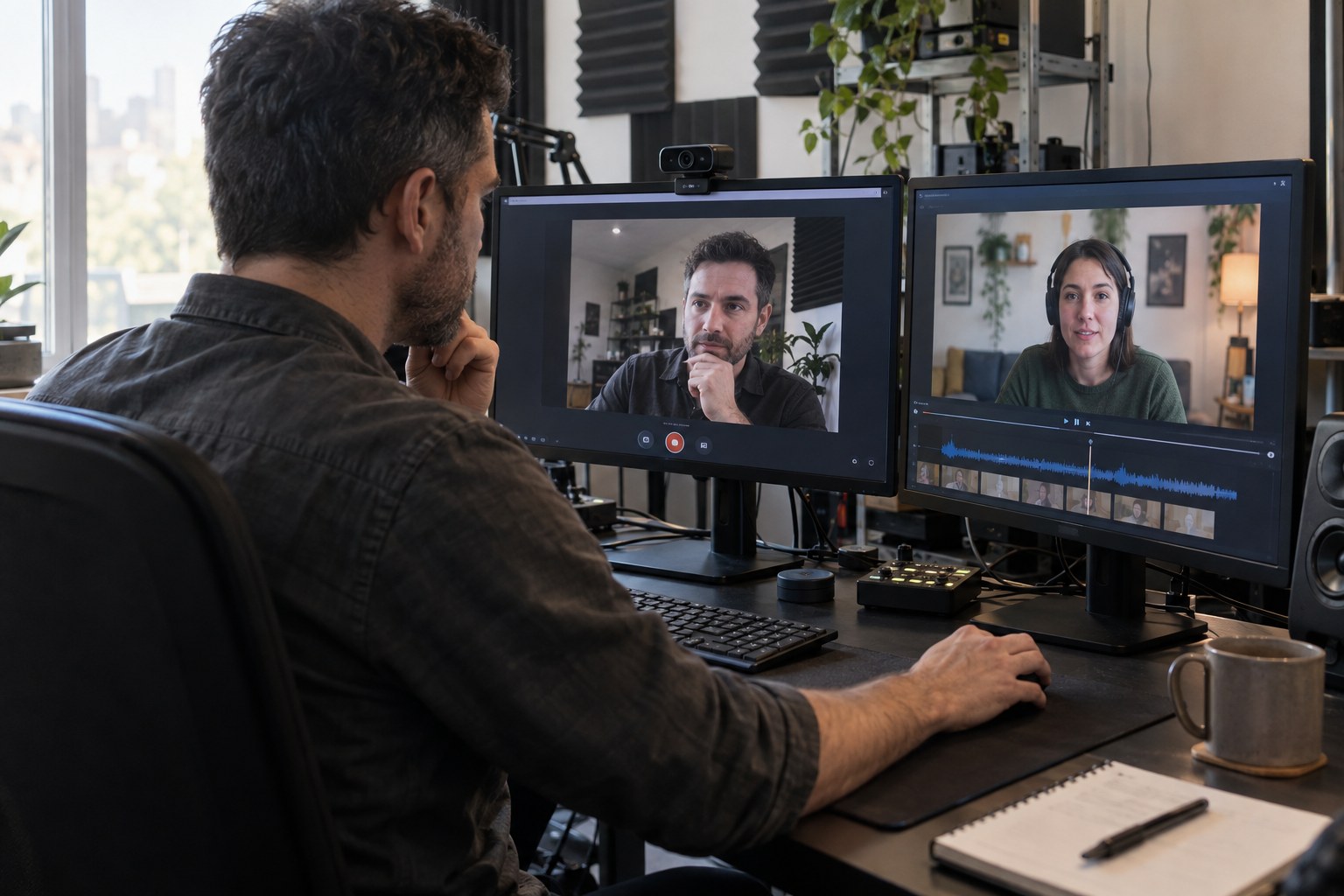
Privacy and compliance also shape the test. Use consenting adults, a closed room, and non-public recordings; avoid exposing personal documents, location clues, or unapproved participants in the background. Platform operators onboarding creators should publish a standard protocol without collecting more sensitive footage than necessary. A visual test confirms technical readiness, not identity, age, consent, recordkeeping, or jurisdictional compliance. Those require separate controls. The next action is to assign ownership for both the equipment checklist and the policy checklist before creators go live.
What is the fastest reliable path from unboxing to production?
Move in a fixed order: establish the room baseline, verify capture, record the matrix, correct one variable at a time, repeat failed gates, and finish with a private end-to-end session. The evidence should make the deployment decision reproducible for a solo creator or an entire platform.
- Write the required resolution, frame rate, framing, browser, and show-format criteria before opening the camera.
- Mount the device in its production position; set the intended lighting, background, microphone, and USB connection.
- Confirm browser permission and active capture settings, then record the complete acceptance matrix in one continuous take.
- Review the file for detail, focus recovery, noise, motion, field of view, and audio sync; record pass or fail for every row.
- Change only the likely cause of a failed test, repeat it, and preserve both recordings with the configuration used.
- Run a closed live session through the production platform and inspect playback from a separate viewer connection.
- Keep, configure, or return the camera while the commercial remedy remains available; retain the accepted benchmark for regression testing.
For a platform operator, turn this sequence into onboarding rather than leaving every creator to improvise. Store recommended presets by camera and browser, allow a private preflight room, and make device selection and permission errors understandable. The test should also match the monetization journey: private video, group sessions, tips, and paid access are commercial moments, so capture failure is not merely a technical inconvenience. A consistent preflight process protects both creator confidence and the customer experience.
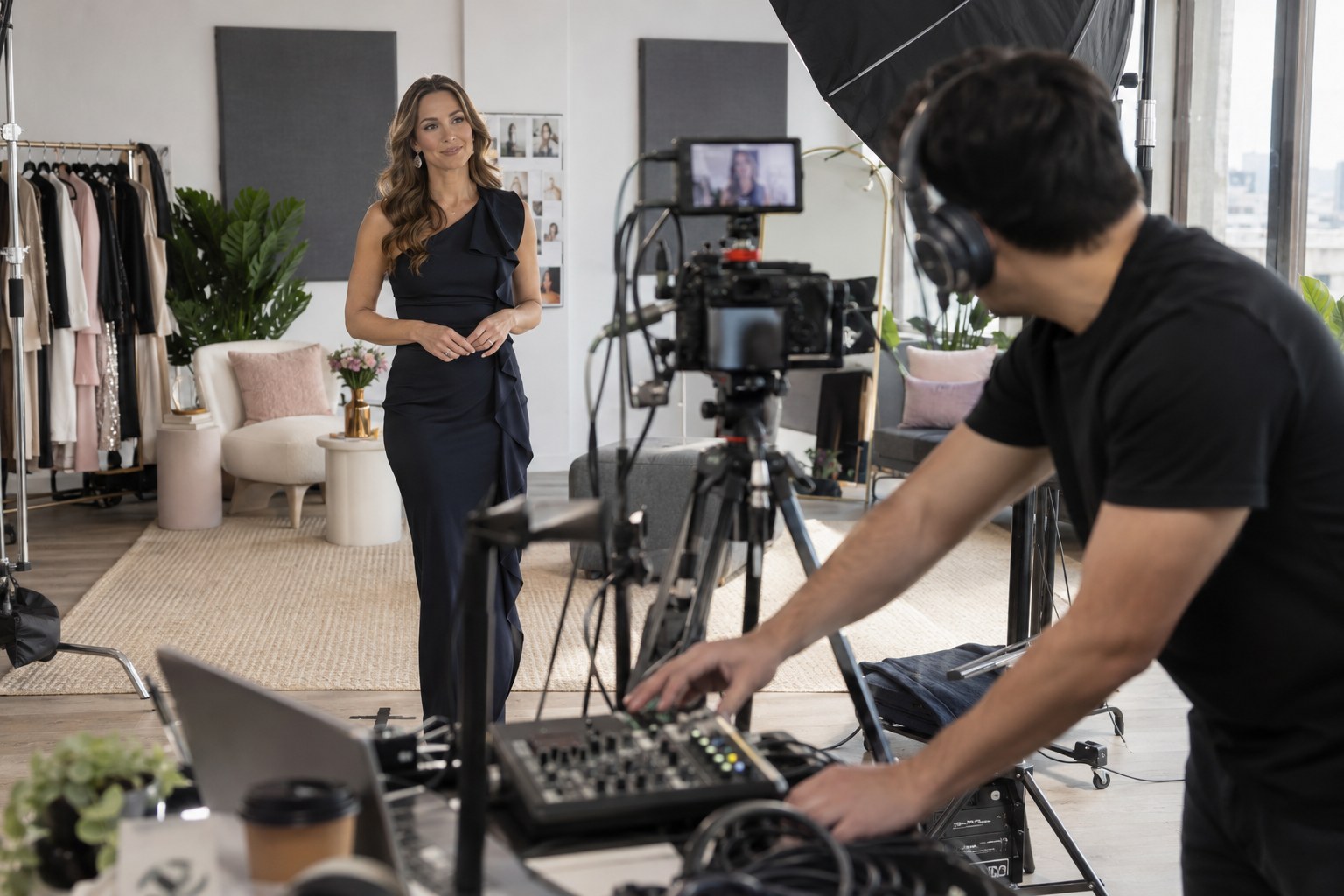
The accepted recording becomes more valuable after launch. Re-run it when a browser, driver, camera, room, or capture configuration changes, and compare the new result with the baseline before creators discover the difference during paid work. Operators planning how to convert cam viewers into paying customers should regard dependable video as part of the conversion path: trust erodes quickly when focus pulses or sound trails the picture. The limitation is that preflight cannot guarantee every network condition, but it can remove preventable device and configuration failures from the equation.
Build camera readiness into the platform, not into wishful thinking
A reliable camera test solves one edge of a larger operating problem: creators need a branded environment where capture, private and group video, chat, monetization, payments, moderation, and administration work as one service. Once the acceptance process is defined, it should become part of onboarding and regression testing rather than a document nobody opens twice.
Scrile Stream is white-label webcam software for branded private live streaming and monetized video sites. It supports WebRTC and RTMP streaming, private and group video chat, pay-per-minute access, tips, premium content, direct payment integrations, and administration tools. Custom development, design, hosting, and technical support are available when the standard setup needs to fit a specific operating model.
Frequently asked questions
How do I test a webcam before camming?
Record a repeatable take through the browser and setup you will use live. Check delivered resolution, frame rate, focus recovery, low-light noise, motion, framing, audio sync, and browser recognition against written pass conditions.
Is a browser preview enough to test a webcam?
No. A preview confirms basic access but can hide motion problems, focus hunting, audio drift, and negotiated settings. Review a saved recording and then run a private end-to-end stream.
What resolution and frame rate should a camming webcam deliver?
Use the requirements of your platform and format. For the benchmark in this article, 1920×1080 at 30 fps is an explicit operating assumption, not a universal rule.
How can I test webcam autofocus?
Focus at the normal performance position, move closer or farther away, then return to the mark. Review whether focus recovers promptly and remains stable without repeated hunting.
How do I check webcam audio sync?
Record a visible clap followed by natural speech, then compare the sound with the hand contact and lip movement. Repeat after a browser restart if alignment appears wrong.
Why does my webcam look good locally but bad when streaming?
The likely problem may be outside the camera: upload stability, platform encoding, playback conditions, or system load. Compare the local recording with a private remote-session recording to isolate the failing stage.
Should I return a webcam that fails one test?
Return it when a critical hardware-level failure persists after a controlled retest. Configure and retest failures plausibly caused by lighting, exposure, focus mode, browser permissions, drivers, or USB placement.
Should a platform test every creator's webcam?
A platform should provide a consistent private preflight workflow and clear acceptance criteria. It can verify technical readiness without retaining unnecessary sensitive footage or replacing separate identity, age, consent, and compliance controls.