
Quick answer
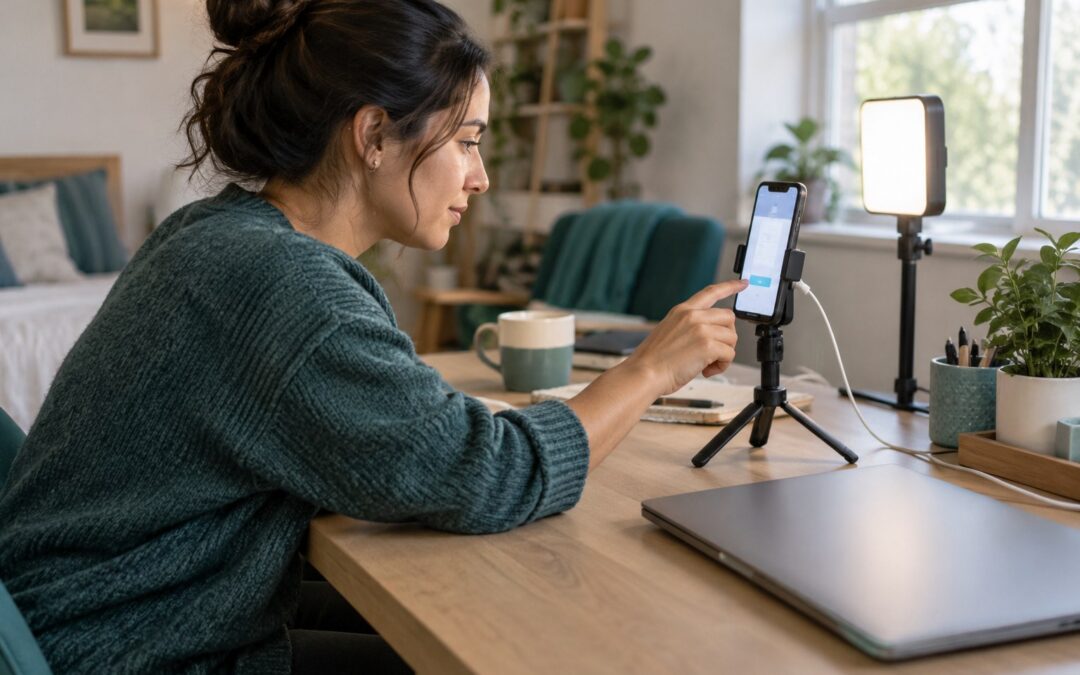
You can cam from your phone if your chosen platform supports mobile broadcasting and the device can sustain a private test without overheating, losing power, dropping the connection, or hiding controls you need. Mount the phone, choose and lock the orientation, use soft front lighting, protect notifications and personal details, test audio, and keep power connected safely. Move to a computer when chat, moderation, multiple scenes, external devices, or long sessions make the phone a bottleneck.
How to cam from your phone—and know when it is enough
Start with a phone when your show uses one camera, one room, straightforward chat, and a mobile-compatible broadcasting flow. Do not start with a phone merely because its camera looks sharp: the real test is whether the entire session remains usable while video, chat, payments, and privacy controls compete for the same small device.
A capable mobile setup has four parts: platform access, stable capture, clean sound, and operational control. Confirm that the platform lets a creator broadcast from the phone model and browser or app you intend to use. Then check whether you can read chat, see session status, end the stream quickly, and reach safety or moderation controls without covering the camera. If an essential control disappears in landscape mode, that is a workflow failure, not a minor inconvenience.
| Show requirement | Phone is a reasonable fit | Prefer a computer |
|---|---|---|
| Camera workflow | Single fixed shot | Multiple cameras, scenes, or screen capture |
| Audience interaction | Simple chat and tips | Heavy moderation or several control panels |
| Production | Minimal overlays and external gear | Complex audio, lighting, or broadcast software |
| Mobility | Location matters to the format | A permanent studio is acceptable |
| Session stability | Private test stays cool and connected | Heat, power, or app switching interrupts work |
Treat the matrix as a gate. If the show falls mainly in the middle column, run a mobile pilot before shopping. If several requirements land in the computer column, buying accessories around the phone may only produce a more expensive bottleneck. Creators still deciding how to be a cam model should define the format and boundaries first; equipment follows the operating model.
What must be ready before a mobile cam session?
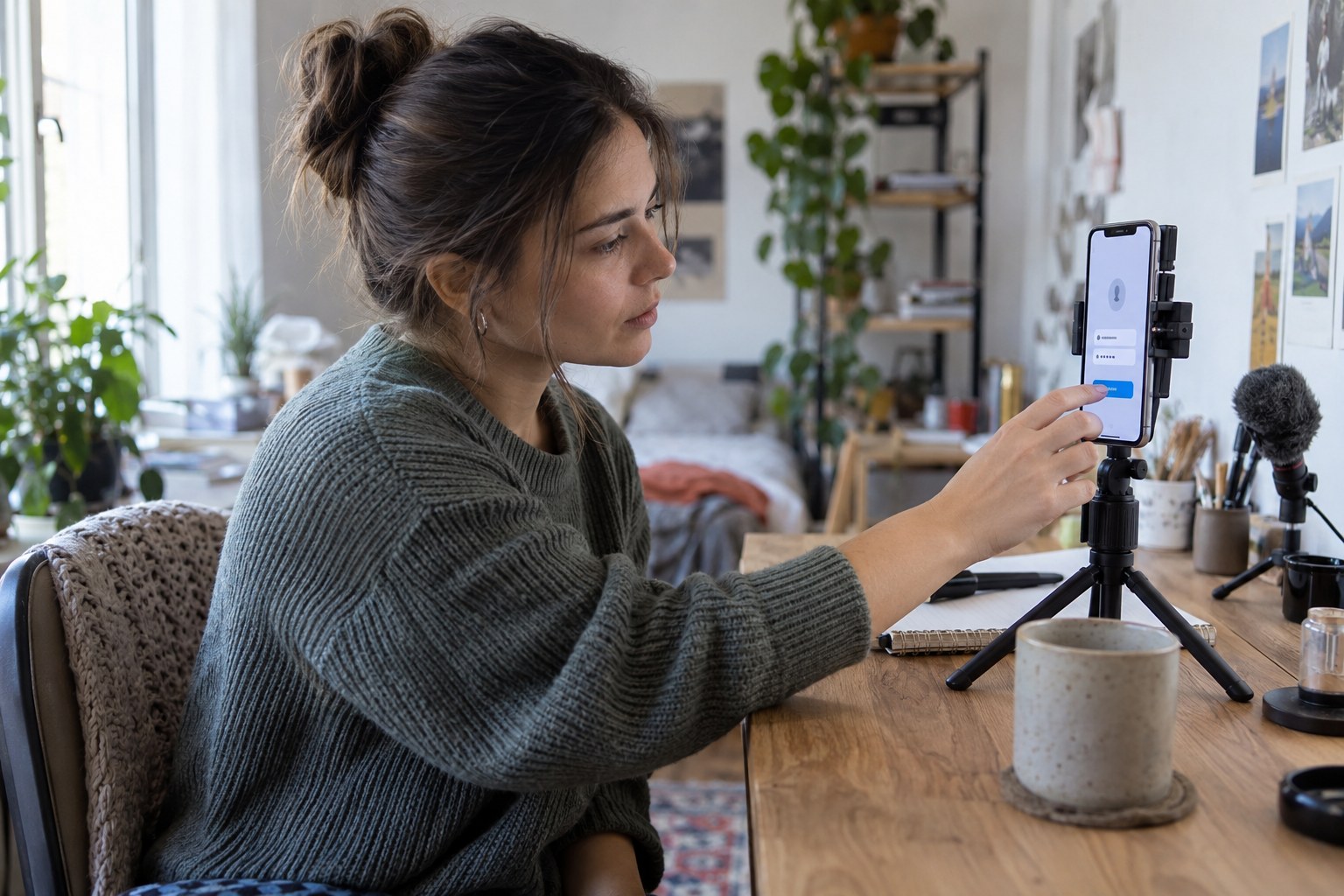
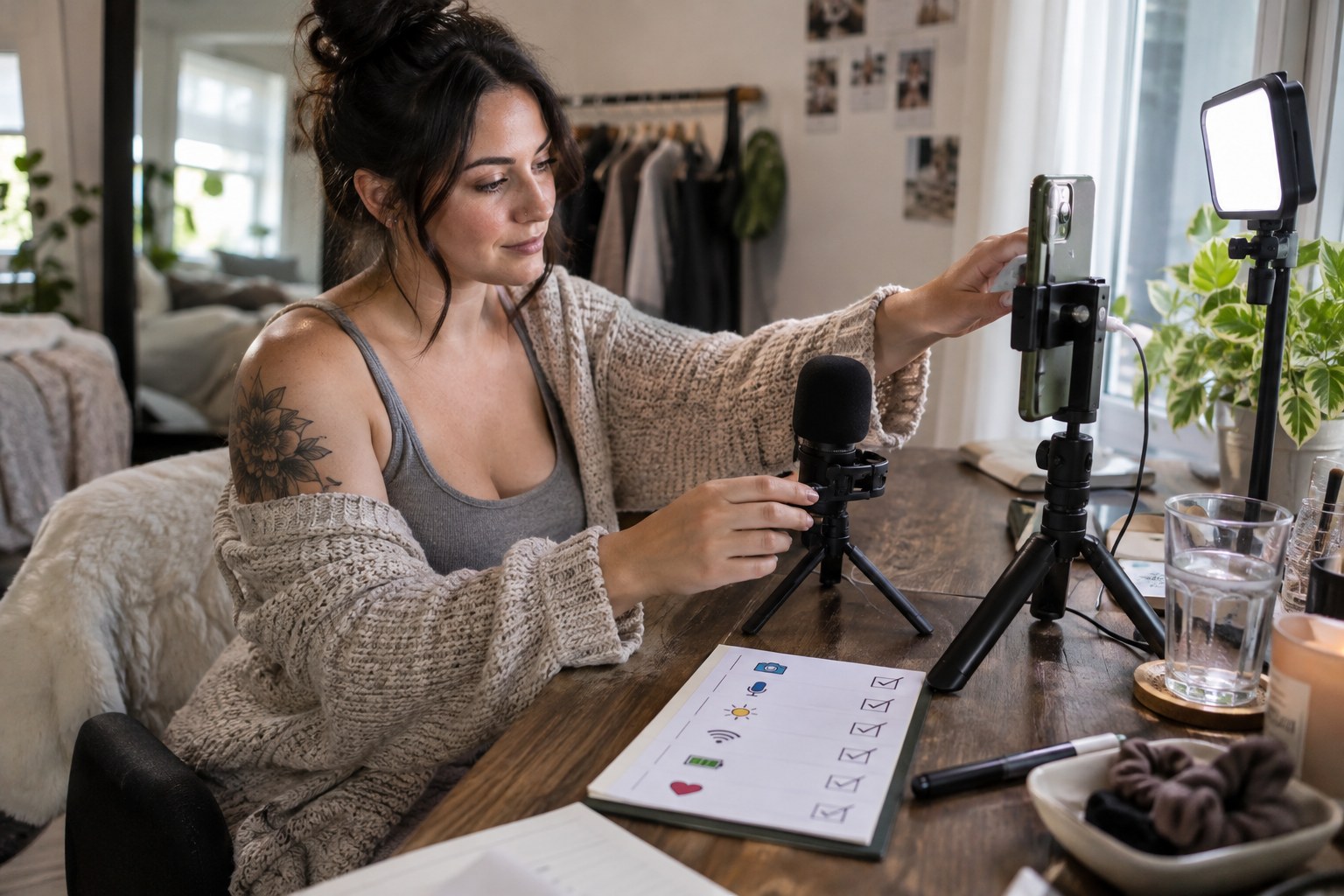
Before going live, verify compatibility, orientation, support, power, heat, audio, connection, notifications, and privacy as one operating sequence. A phone that passes isolated camera tests can still fail once it is charging, encoding video, displaying chat, and receiving background alerts at the same time.
- Open the broadcaster on the exact phone and account you will use; confirm camera, microphone, chat, private-session, tip, and stop controls.
- Choose portrait or landscape according to the platform and viewer layout, lock rotation, mount the phone at eye level, and frame the full movement area.
- Place soft light in front of you, clean the lens, select the intended camera, and avoid digital zoom.
- Record speech and movement from the actual position; check voice clarity, fabric noise, echo, and whether the mount or hand blocks a microphone.
- Connect to reliable Wi-Fi or mobile data, disable automatic network switching where practical, and keep a tested fallback available.
- Use a safe charging arrangement, remove unnecessary heat-trapping accessories, and watch for dimming, stutter, or temperature warnings.
- Enable Do Not Disturb, hide notification previews, close personal apps, remove location clues, and inspect mirrors, windows, mail, and photographs in frame.
- Run a private or otherwise non-public rehearsal, review it on another device, then confirm that ending the broadcast actually ends capture.
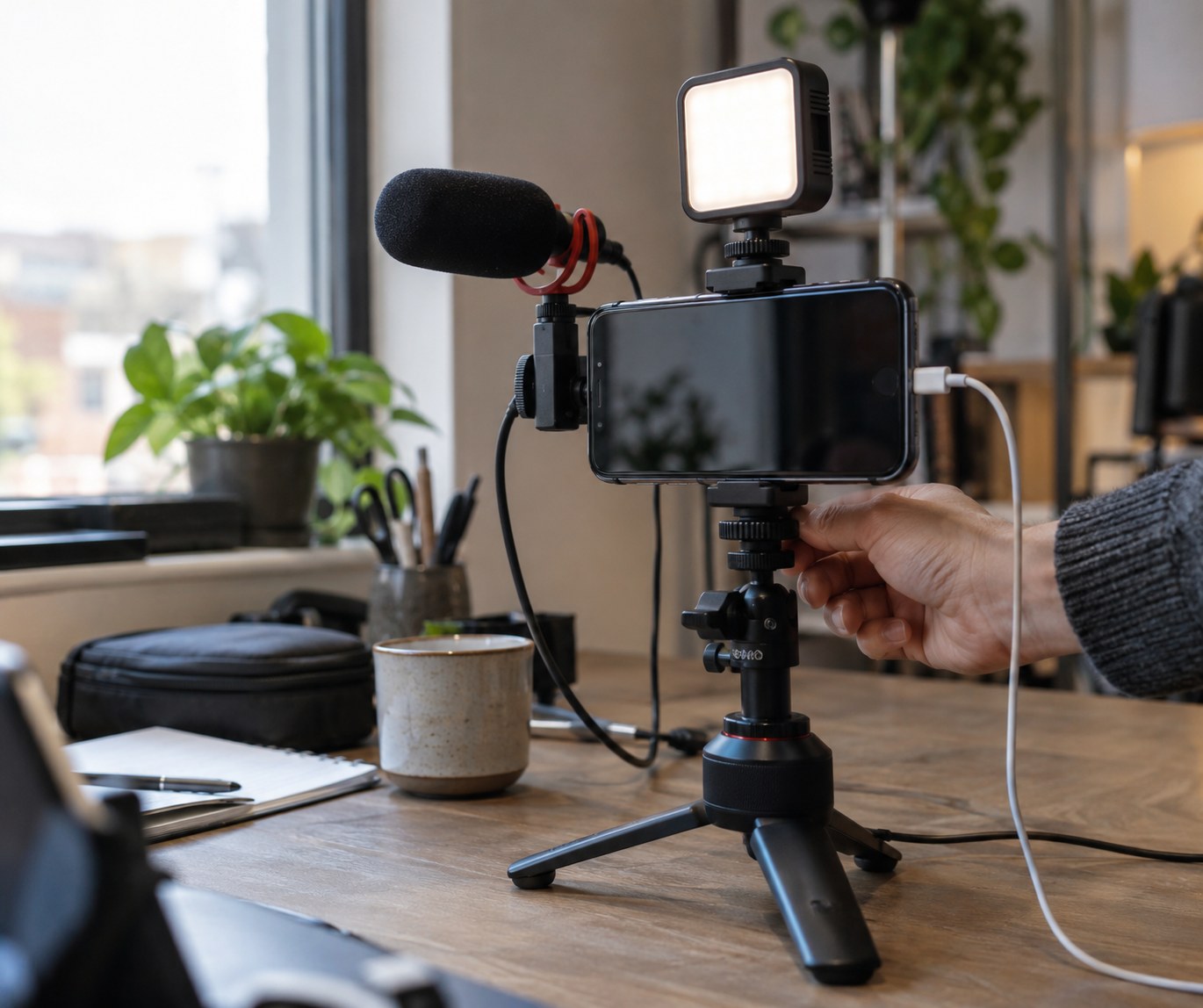
Audio deserves equal status with video. Viewers may tolerate a slightly soft picture; clipped, distant, or echoing speech makes interaction laborious. Keep the phone close enough for intelligible voice, soften reflective rooms, and use a compatible external microphone only after testing the adapter, charging path, and app together. A cam model microphone setup is useful only when it reduces complexity rather than adding another fragile connection.
How do you test a phone before the first real show?
Run an end-to-end rehearsal that imitates the intended show, including its busiest interaction. The pass condition is not “the stream started.” It is that the creator can be seen, heard, paid, protected, and brought offline cleanly without improvising around the device.
Here is a worked example with explicitly hypothetical assumptions: a creator plans a seated, conversational show from a quiet bedroom, uses one front-facing camera, reads chat on a second device, and offers public interaction followed by private sessions. The phone is mounted near a window with a lamp available after daylight changes. No overlays, scene changes, or external broadcast software are required. Those assumptions make mobile operation plausible, but they still need a realistic rehearsal.
- Enter the room as a viewer and inspect framing, light, sound, delay, and any identifying details.
- Send chat messages and a test interaction while the creator watches the phone for camera status and the second device for conversation.
- Move through the public-to-private flow using the platform's safe test method, then verify that access and session state behave as expected.
- Continue through the most demanding portion while watching connection behavior, charging, heat, audio drift, and control responsiveness.
- End the private state, end the broadcast, confirm the viewer can no longer see or hear the room, and review the recording if available.
Record outcomes as pass, repair, or migrate. A loose mount belongs in repair; inaccessible moderation controls may require migration to a computer or a different workflow. If the stream succeeds but viewers struggle to hear, fix audio before chasing a better camera. Once the setup is stable, test the best time to cam separately; traffic testing cannot diagnose technical reliability when both variables change together.
What can go wrong, and when should you move to a computer?
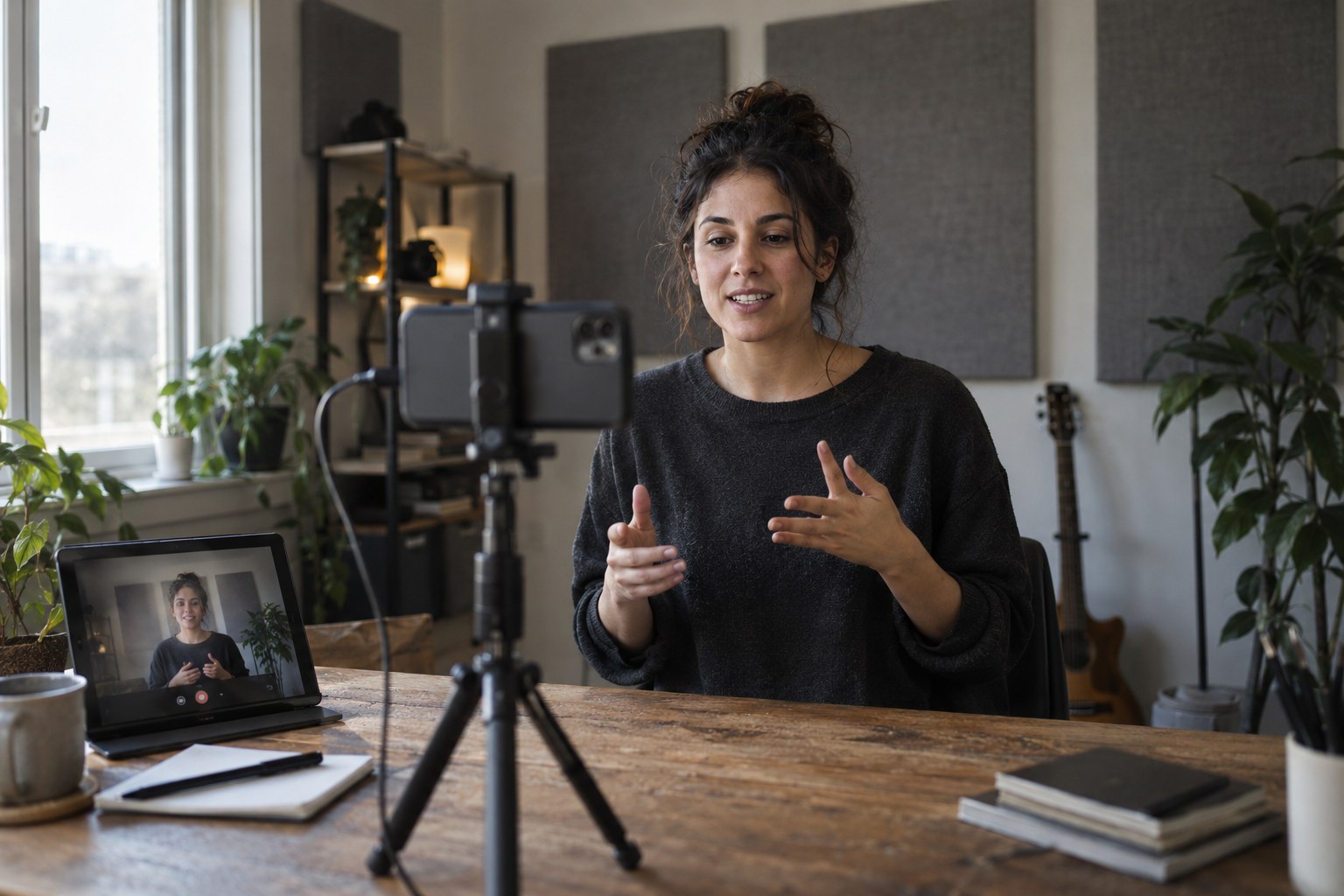
Move to a computer when the phone repeatedly limits control, continuity, or production—not simply when a newer camera becomes tempting. Persistent heat, battery loss while connected to power, unstable network handoffs, unreadable chat, missing moderation tools, cramped private-session controls, or reliance on several adapters are operational upgrade signals.
Mobile risk also extends beyond performance. Incoming calls and notification previews can expose private information. Cloud photo syncing, location metadata, reflective surfaces, recognizable views, and reused personal accounts can connect a stage identity to an offline identity. Use separate work accounts where practical, review platform permissions, disable location sharing that the show does not need, and keep authentication recovery secure. Never show identity or payment documents on stream.
Platform rules, age and identity verification, consent records, content restrictions, payment eligibility, and local law still apply when the camera is a phone. Mobile convenience does not reduce an operator's compliance duties. Creators should verify the rules governing their location, participants, content, and platform before broadcasting; platform founders need corresponding onboarding, moderation, recordkeeping, and payment controls. Faceless camming can reduce visual exposure, but it does not replace verification or operational privacy.
| Observed signal | First response | Upgrade implication |
|---|---|---|
| Heat or dimming | Reduce environmental heat and retest safely | Migrate if normal sessions still degrade |
| Dropped or unstable video | Test the network and fallback separately | Use a wired computer setup if consistency requires it |
| Chat hides camera status | Use a second trusted device | Migrate when control remains fragmented |
| Audio needs adapter chains | Simplify and retest compatibility | Prefer a computer for dependable audio routing |
| Show needs scenes or several sources | Reduce production scope | Move when complexity is part of the product |
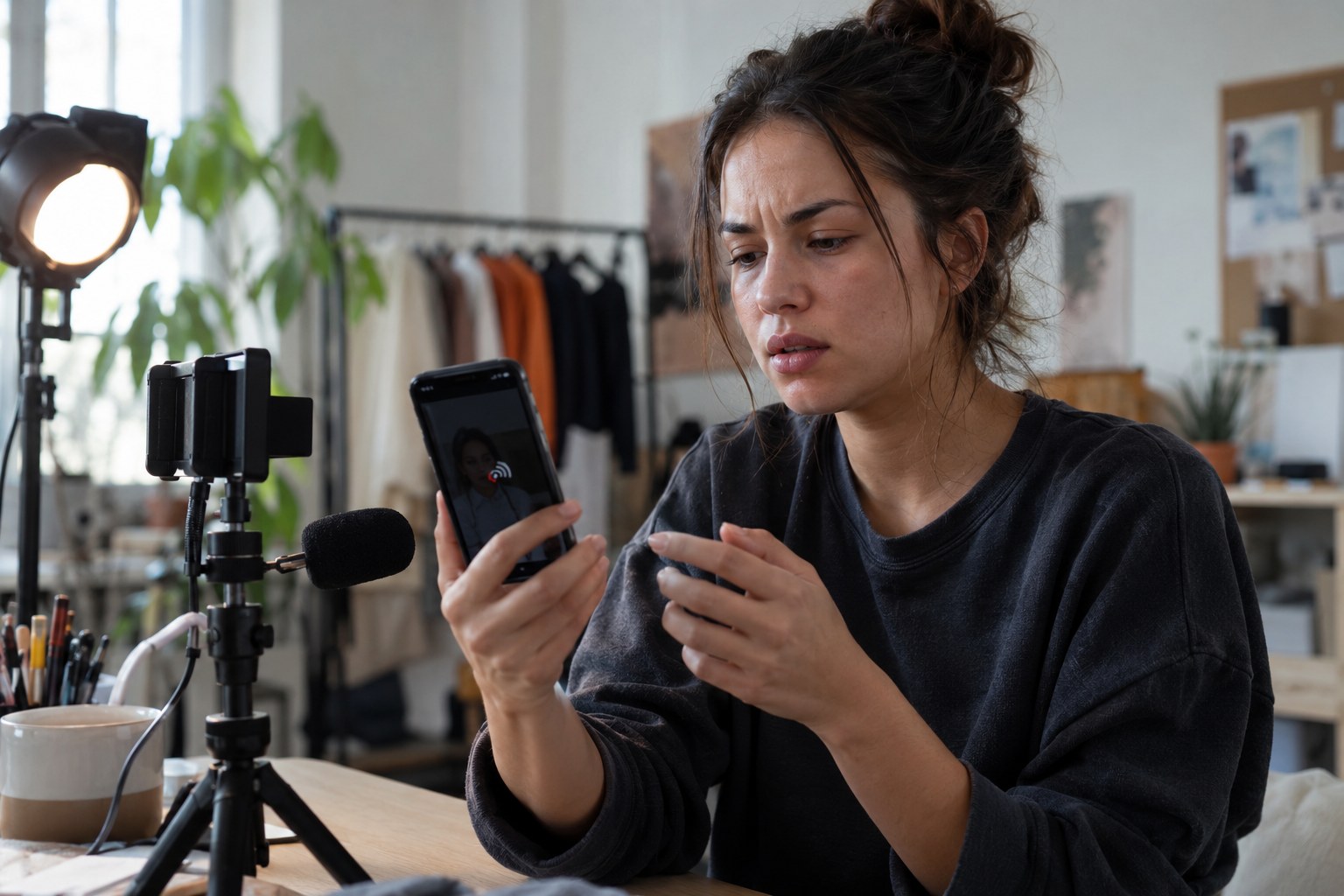
What is the safest path from mobile test to repeatable business?
Turn the successful rehearsal into a fixed operating routine: freeze the known-good setup, document the preflight, launch with a simple format, review failures after every session, and upgrade only when evidence identifies the constraint. Repeatability matters more than squeezing every available feature into the first broadcast.
- Confirm platform eligibility, creator verification, permitted content, payment setup, consent requirements, and account security before promotion.
- Save the working orientation, camera choice, mount position, light placement, audio route, network, charging arrangement, and privacy settings.
- Prepare the room, enable interruption controls, close personal accounts, inspect the frame, and run a viewer-side sound and picture check.
- Begin with the rehearsed public or private format; do not introduce new adapters, locations, or production features during launch.
- After the session, log disconnections, heat, missed messages, awkward controls, audio complaints, and any privacy or moderation incident.
- Repair one root cause at a time, repeat the private test, and move to a computer when the remaining constraint is inherent to mobile operation.
Keep business decisions separate from device enthusiasm. A polished stream still needs a clear offer, boundaries, pricing logic, scheduling, and follow-up. A cam show tip menu should fit actions that can be delivered reliably within the mobile frame, while public vs private cam shows require different attention, access, and moderation workflows. If the phone makes those workflows hard to operate, simplify them before adding more monetization options.
For founders, the same test becomes a product requirement: creators need mobile-compatible broadcasting, obvious session state, accessible chat and safety controls, reliable payment events, and a clean path to desktop production. The verifiable next action is a private creator pilot using the actual devices and complete paid-interaction journey. Observe where people hesitate; those moments define the roadmap better than a feature wish list.
Build the mobile workflow into a platform you control
Once creators can prove a mobile show works, the next question is whether the business owns the customer experience, monetization, and operating rules. Scrile Stream is white-label webcam software for branded private and group live-video services, with low-latency streaming, chat, pay-per-minute access, tips, premium content, direct payment integrations, administration tools, and support for WebRTC or RTMP workflows.
Teams can launch an MVP under their own domain and branding, then use custom development, UX/UI support, hosting, and technical support as the product grows. A consultation can turn the mobile pilot findings—creator controls, paid-session flow, moderation, and upgrade needs—into a concrete platform roadmap.
Frequently asked questions
Can you cam from a phone without a computer?
Yes. If the platform supports mobile broadcasting and the phone passes a complete video, audio, connection, power, heat, control, and privacy test, a computer is not required for a simple show.
Is a front or rear phone camera better for camming?
The rear camera often produces a stronger image, while the front camera makes framing and self-monitoring easier. Choose based on the complete workflow, then test the viewer's picture rather than relying on camera specifications.
Should I cam in portrait or landscape mode?
Use the orientation supported by the platform and suited to the viewer layout. Lock rotation before broadcasting and confirm that chat, session, payment, moderation, and stop controls remain accessible.
How can I stop calls and notifications appearing during a cam show?
Enable Do Not Disturb, hide notification previews, close personal apps, and test the settings before going live. Separate work accounts and devices provide stronger privacy where practical.
Do I need an external microphone when camming from a phone?
Not necessarily. First test the built-in microphone from the real performance position. Add a compatible external microphone only if it clearly improves speech and remains reliable while the phone is mounted and powered.
How do I prevent my phone from overheating while streaming?
Keep it away from direct heat, avoid unnecessary insulating accessories, use a safe power arrangement, close unneeded apps, and run a realistic rehearsal. If normal sessions still trigger heat-related dimming or instability, change devices or move to a computer.
When should I upgrade from phone camming to a computer?
Upgrade when recurring problems come from limited workspace or routing: inaccessible controls, complex moderation, multiple cameras or scenes, fragile adapter chains, persistent heat, or a need for dependable wired networking.
How should a platform founder support creators who cam from phones?
Test the complete mobile journey on real devices: onboarding, broadcast start, chat, paid interactions, private sessions, moderation, error recovery, and stream termination. Make critical states and safety controls obvious, then offer a clear route to desktop production.