
Quick answer
For most camming setups, begin with 720p at 30 fps, a hypothetical starting video bitrate of 3,000 kbps, 160 kbps audio, and a hardware encoder when OBS offers one. Treat that as a test profile, not a universal prescription. Confirm the platform’s limits, measure stable upload capacity, record movement and speech locally, then run a private stream while watching OBS statistics. Increase quality only after the baseline remains stable.
Choose stability before headline quality
Choose OBS settings from the weakest constraint in the delivery chain: the platform limit, sustained upload connection, encoder capacity, or source quality. If any one fails, a nominally sharper picture becomes a worse commercial experience.
A cam session is an interactive product, not a cinematography contest. Viewers notice freezes, delayed responses, distorted speech, and reconnects before they admire extra pixels. Resolution controls image dimensions; frame rate controls temporal smoothness; bitrate supplies the data needed to preserve both. Raising all three simultaneously increases network and encoding pressure. The commercially sensible baseline is therefore the lowest profile that looks clean during real movement and remains stable for an entire representative session.
- Confirm the destination’s accepted resolution, frame rate, codec, bitrate, server URL, and stream-key requirements.
- Measure sustained upload performance on the exact connection and at the time the performer will work.
- Choose a resolution and frame rate appropriate to the camera, lighting, movement, and viewer devices.
- Assign the available bitrate, reserving capacity for audio, chat, payments, and ordinary network variation.
- Validate encoder load, dropped frames, synchronization, and the received stream before publishing the profile.
Connection speed alone does not settle the decision. Wi-Fi interference, shared household traffic, thermal throttling, browser tabs, filters, and a weak camera can each become the bottleneck. Review the broader internet speed for camming decision before treating one speed-test result as permission to maximize OBS. The next action is to document one conservative baseline rather than letting every performer improvise.
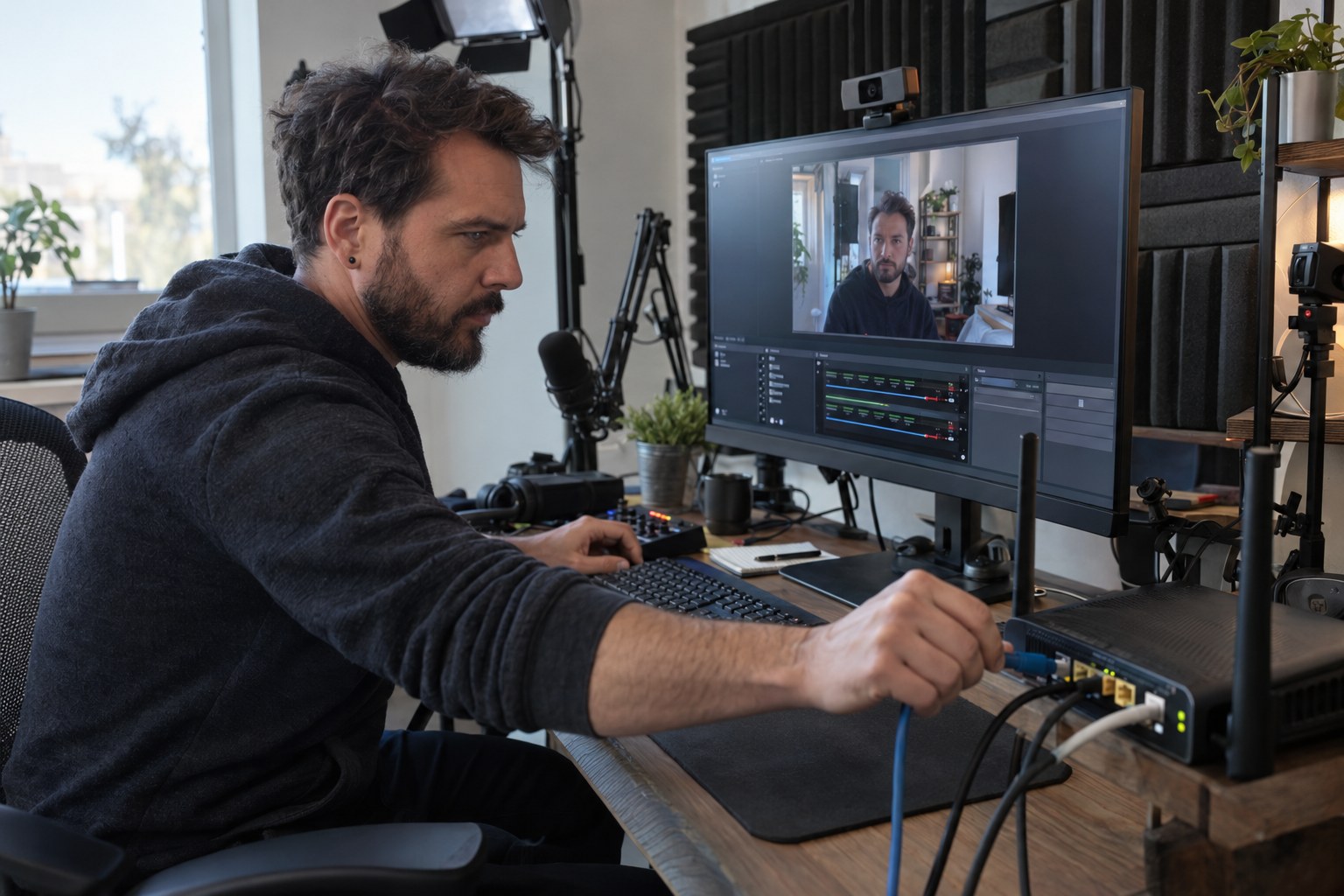
Consider a performer whose camera can output a sharp image but whose shared wireless connection becomes erratic when another person starts a download. Increasing OBS bitrate would improve quiet test footage while making the paid session less reliable at the busiest moment. A wired connection, a conservative output profile, and a scheduled private test solve the actual constraint. If wiring is impossible, test from the intended room with competing household traffic active; a laboratory-perfect speed test from beside the router proves surprisingly little.
OBS settings for camming: a practical starting matrix
Use a profile matrix to select a testable starting point, then adjust one variable at a time. These profiles are operating assumptions for common talking-camera scenes, not guarantees that a particular platform will accept or deliver them.
In OBS, keep the base canvas aligned with the layout you build, while the output resolution defines what viewers receive. Select a hardware encoder when available and stable; otherwise use the software encoder with a preset the computer can sustain. Constant bitrate is the usual streaming choice because delivery systems expect predictable traffic. Start at 30 fps unless fast motion genuinely adds value: 60 fps places materially more demand on the system, while most conversational cam formats benefit more from stable detail and clean audio.
| Use case | Output | Video bitrate | Audio bitrate | Best starting condition |
|---|---|---|---|---|
| Constrained connection | 854×480, 30 fps | 1,500 kbps | 96 kbps | Small frame or limited upload |
| Balanced default | 1280×720, 30 fps | 3,000 kbps | 160 kbps | Most conversational shows |
| Detail priority | 1920×1080, 30 fps | 5,000 kbps | 160 kbps | Stable upload and capable encoder |
| Fast movement | 1280×720, 60 fps | 4,500 kbps | 160 kbps | Motion matters and testing passes |
Match exposure, focus, white balance, and lighting before buying bitrate to rescue a poor source. The camera settings for camming guide covers that upstream decision. After selecting a row, verify every value against the destination platform; if its ceiling is lower, the platform wins the argument.
How do you test and diagnose the profile?
Test in two stages: record locally to expose camera, scene, audio, and encoder problems, then run a private end-to-end stream to expose network and platform problems. Change only one setting between trials.
Worked example: assume hypothetically that an operator has a 10 Mbps sustained upload result, a platform accepting 720p at 30 fps, and a hardware encoder. The operator begins at the hypothetical balanced profile: 3,000 kbps video plus 160 kbps audio. That configured media rate totals 3,160 kbps before protocol overhead and remains well below the assumed measured upload result. This is not proof of stability; it is permission to test under realistic conditions.
- Record movement, low-light areas, speech, music, scene changes, and any overlays locally.
- If OBS reports encoding overload, simplify the scene, remove filters, reduce frame rate or resolution, or choose a faster encoder preset.
- If the local recording is clean but the private stream drops frames, investigate the network route, connection method, server, and bitrate.
- If motion becomes blocky without dropped frames, reduce scene complexity or resolution before cautiously adding bitrate.
- If sound clips, echoes, drifts, or disappears, isolate gain, monitoring, sample-rate, and device-selection problems separately.
Evaluate the stream from another device on another connection, because the OBS preview does not show what the delivery service actually produced. Use headphones and the cam model microphone setup to separate room acoustics and microphone gain from network symptoms. Save the passing profile with a clear name and retain the failed result for comparison.
The example’s apparent upload margin could disappear when cloud backup, another broadcaster, or household video traffic starts. Repeat the end-to-end test during the intended working window and with normal background activity present. Keep a simple trial log containing the profile name, connection type, scene used, observed symptom, and changed variable. Without that discipline, operators tend to alter bitrate, encoder preset, lighting, and audio together; the next test may improve, but nobody learns why, and the same fault returns on another workstation.
Which problems cannot OBS settings fix?
OBS cannot repair inadequate lighting, unstable service delivery, a poor microphone position, thermal or hardware faults, or destination-side transcoding. It can only encode and send the sources and capacity available to it.
A clean local recording paired with a damaged remote stream points away from the camera scene and toward network delivery or platform processing. A damaged local recording points back toward capture, rendering, encoding, or audio. That distinction prevents expensive guessing. It also matters operationally: a platform founder should not publish one universal “maximum quality” preset when performers use different computers, cameras, regions, and access networks.
Platform rules are another hard boundary. Confirm accepted codecs, ingest protocol, bitrate ceiling, keyframe requirements, orientation, and whether the service transcodes for viewers. OBS supports custom streaming-server details, but having a server URL and stream key does not mean every configuration will be accepted. For private interactive sessions, latency requirements may also make a browser-based WebRTC workflow more appropriate than an OBS-to-RTMP contribution feed.
Privacy and compliance sit outside image quality. Crop unintended areas, disable unnecessary desktop and notification capture, protect stream keys, and test emergency scene and mute controls. A camming equipment checklist helps identify physical gaps, but operators must separately confirm age verification, consent, recordkeeping, payment, moderation, and local legal obligations. The useful implication is simple: treat the OBS preset as one controlled component of a larger operating system.
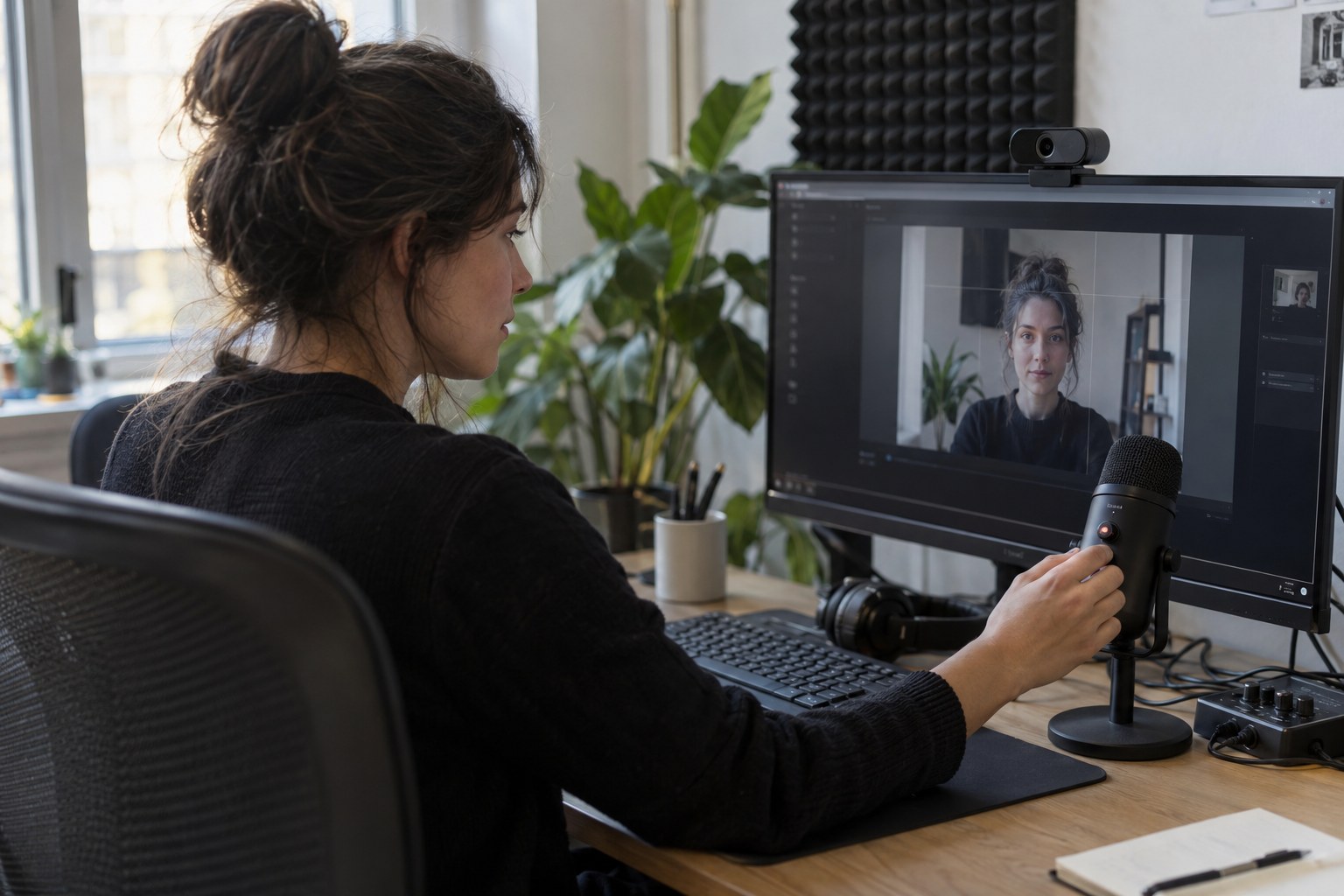
How should operators deploy reliable presets?
Deploy OBS as a documented operating profile: verify the destination, establish a conservative baseline, test locally and remotely, lock the passing configuration, and retest whenever hardware, scenes, networks, or platform rules change.
- Inventory the camera, microphone, computer, encoder options, connection type, and destination requirements.
- Build one minimal scene containing only the camera and required audio; add overlays or media after it passes.
- Apply the closest starter profile and configure the correct server and protected stream key.
- Record a representative rehearsal, correct source and encoder faults, then run a private end-to-end stream.
- Review the received stream on a separate connection and check OBS statistics throughout the trial.
- Save the approved profile, scene collection, device assignments, hotkeys, and recovery procedure.
- Train performers to recognize encoding overload, network drops, audio clipping, and platform-side rejection.
- Retest after changing equipment, filters, room layout, internet service, or delivery infrastructure.
For a solo performer, that process creates repeatability. For an agency or platform, it becomes onboarding and support infrastructure. Pair the technical profile with scheduling and show design: the best time to cam affects network conditions and audience operations, while production choices determine scene complexity. Give each approved configuration an owner and a rollback version. “Someone adjusted OBS” is not an incident report, although it is a remarkably common one.
Founders must then decide where OBS belongs in the product architecture. It may be the production tool for creator broadcasts while browser-based video handles private interaction. Define ingest, viewer delivery, monetization, moderation, and payments together; otherwise a flawless feed arrives inside a business workflow that cannot reliably sell or govern it.
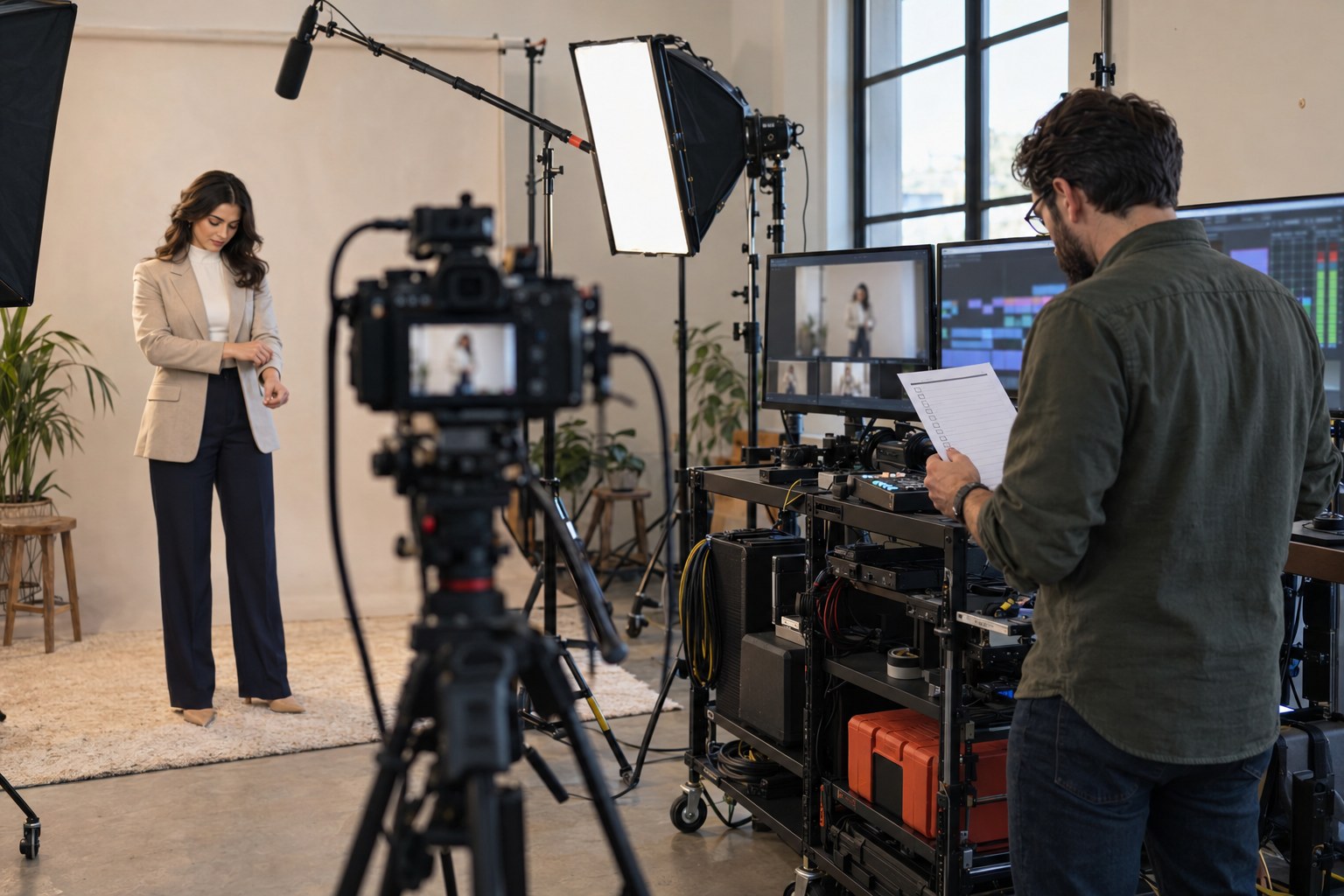
Turn a stable stream into an owned video business
Once capture settings are controlled, the larger decision is how the stream becomes a branded, monetized service. Scrile Stream is a white-label platform for webcam and video chat businesses, combining private and group video modes, built-in chat, pay-per-minute access, tips, premium content, direct payment integrations, and administration under the operator’s own brand and domain.
The platform supports WebRTC and RTMP workflows, so founders can design the delivery path around interactive sessions and produced broadcasts instead of forcing every format into one tool. Custom development, design, hosting, and technical support are available when the operating model needs more than a standard launch configuration.
Frequently asked questions
What are the best OBS settings for camming?
The best settings are the highest profile that remains stable within the platform’s limits, sustained upload capacity, and encoder capability. A sensible hypothetical baseline is 720p, 30 fps, 3,000 kbps video, 160 kbps audio, and a supported hardware encoder, followed by local and private-stream testing.
Should I stream cam shows at 30 fps or 60 fps?
Start at 30 fps for conversational or mostly stationary shows. Consider 60 fps only when fast movement materially improves the format and the computer, connection, and destination all pass an end-to-end test.
Is 720p or 1080p better for camming?
1080p offers more detail only when the camera, lighting, encoder, bitrate, connection, and platform can preserve it. A stable 720p stream can look better than underfunded or frequently interrupted 1080p video.
Should I use a hardware or software encoder in OBS?
Use a supported hardware encoder when it produces a clean, stable result and preserves processor capacity for the rest of the session. Use software encoding when the hardware option is unavailable or performs poorly, then select a preset the computer can sustain.
Why does my cam stream look blurry during movement?
The encoder may lack enough data for the resolution, frame rate, and scene complexity. Simplify the background, improve lighting, reduce resolution or frame rate, and only then increase bitrate within verified limits.
Why does OBS drop frames when my speed test looks fast?
A speed test is a short measurement, while streaming depends on sustained delivery to a particular server. Wi-Fi interference, shared traffic, routing, congestion, or an excessive bitrate can cause drops despite an impressive headline result.
How do I fix audio delay in OBS?
First make a local recording to confirm whether the delay originates in capture rather than delivery. Check device selection, monitoring paths, sample-rate consistency, filters, and synchronization settings, changing one item per test.
Can OBS power private pay-per-minute video chat?
OBS can produce and send a stream, but pay-per-minute private chat also requires session control, low-latency interaction, payments, permissions, and moderation. Those functions belong to the surrounding platform architecture.