
Live webcam streaming looks simple from the outside. You turn on a camera, add a video player to your website, place a chat box beside it, and start talking to viewers.
In reality, the setup depends on what you want to build.
A free public broadcast is easy. A paid live webcam business with chat, subscriptions, private sessions, tips, member access, performer accounts, and reliable payments is a different project. WordPress can help you test the idea, but it is not automatically a full streaming platform.
This guide explains how to start a live webcam stream with chat on WordPress in 2026, what tools you need, which setup paths make sense, how monetization works, and when WordPress stops being enough.

Short answer
You can start a live webcam stream with chat on WordPress by using a live streaming plugin, embedding a player from a streaming provider, or connecting OBS to a streaming server and placing the player on a WordPress page. Then you add live chat with a WordPress chat plugin, membership plugin, or a real-time chat solution.
For a simple public stream, this can work well.
For a real webcam business with paid private sessions, tips, subscriptions, pay-per-minute access, user roles, moderation, and reliable payments, WordPress usually becomes a temporary MVP rather than the final platform.
What does it mean to start a live webcam stream with chat on WordPress?
A WordPress live webcam stream with chat can mean several different things.
For one person, it may mean embedding a YouTube Live webcam stream into a blog post and adding a basic chat widget. For another, it may mean creating a private paid member area where users watch a live host and chat in real time. For a business owner, it may mean building a webcam platform with performers, private rooms, pay-per-minute shows, tips, and subscription access.
These are not the same technical problem.
A basic live stream needs a camera, microphone, streaming source, player, and web page. A monetized live webcam platform needs more: user accounts, payments, paid access control, chat moderation, performer dashboards, mobile UX, analytics, payout logic, privacy rules, and scaling.
WordPress can manage content, pages, plugins, users, and memberships. But WordPress itself is not a streaming server. The actual video usually comes from a streaming provider, WebRTC server, RTMP/HLS infrastructure, or a plugin connected to external streaming technology.
That distinction matters. Many beginners think the plugin “does the streaming.” In practice, the plugin often connects WordPress to streaming infrastructure.
Can WordPress handle live webcam streaming in 2026?
Yes, WordPress can handle a live webcam streaming setup, especially at the early stage.
But there is a limit.
WordPress is good at:
- publishing pages;
- managing users;
- creating member-only content;
- embedding video players;
- connecting plugins;
- handling basic payments through WooCommerce or membership tools;
- creating simple gated access flows.
WordPress is weaker at:
- high-load real-time video delivery;
- low-latency private sessions;
- token or credit-based spending;
- pay-per-minute billing;
- performer payout logic;
- advanced chat moderation;
- scalable live video architecture;
- stable mobile live interaction;
- custom webcam business workflows.
Some WordPress streaming plugins do support serious features. For example, the VideoWhisper live streaming plugin lists support for WebRTC, HLS, RTMP, channel management, scheduling, restreaming, and integration with VideoWhisper WebRTC Server for RTMP/HLS restreaming and WebRTC signaling.
That sounds powerful, and it can be. But even plugin-based streaming usually needs infrastructure beyond ordinary shared hosting. This is why the first strategic question is not “Which plugin should I install?” It is “What kind of live video business am I building?”
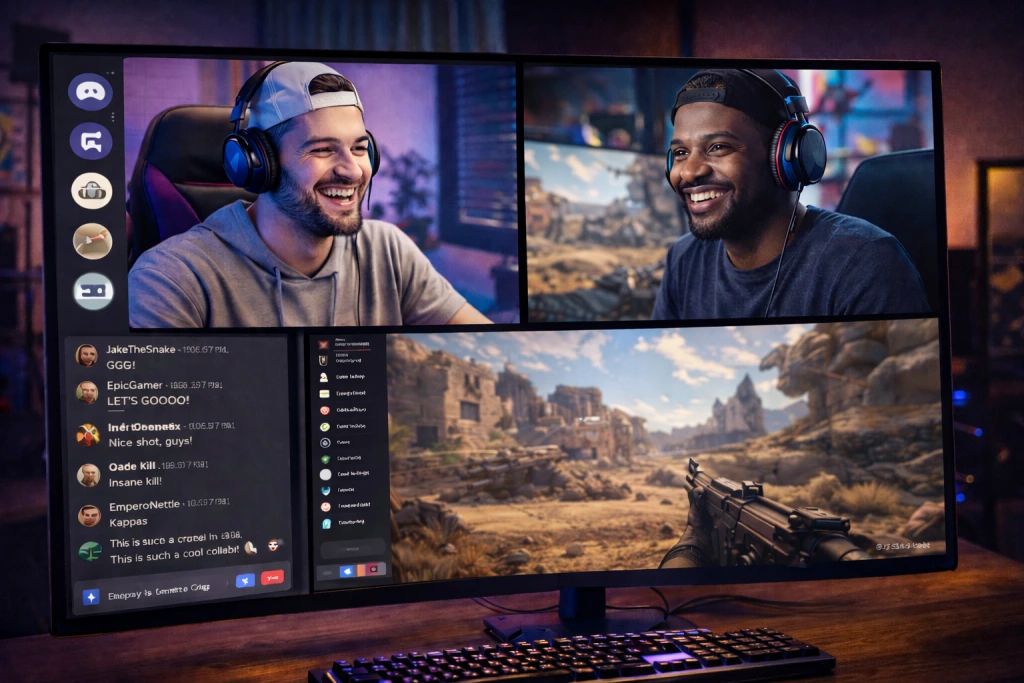
Main ways to add webcam streaming to WordPress
There are four common ways to start.
| Setup option | Best for | Main benefit | Main limitation |
|---|---|---|---|
| Embed a third-party stream | Simple public broadcasts, events, free shows | Fastest setup | Weak control over branding, monetization, private access, and policies |
| Use a WordPress streaming plugin | MVPs, small communities, simple live channels | Keeps more of the experience inside WordPress | May require streaming infrastructure and plugin maintenance |
| Use external streaming infrastructure with WordPress as the front end | More reliable broadcasts, custom player, better control | More scalable than a simple embed | Requires technical setup and integrations |
| Use a dedicated live streaming platform | Paid webcam businesses, private sessions, subscriptions, tips | Built for monetization and operations | Higher commitment than a basic WordPress plugin |
The right option depends on your business model.
If you only need to go live once a week for a small audience, a plugin or embedded player may be enough. If you want a live webcam site where viewers pay for private access, chat, tips, or subscriptions, you should think beyond WordPress from the beginning.
Option 1: Embed a stream from a third-party platform
This is the fastest way to start.
You create a live stream on a platform such as YouTube Live or another streaming provider, copy the embed code, and place it on a WordPress page. You can then add a separate chat plugin or use the platform’s own chat if the embed supports it.
YouTube, for example, lets creators stream from a webcam without separate encoding software. Its help page says webcam streaming can be done from a computer browser, after enabling live streaming, choosing “Webcam,” adding stream details, selecting the camera and microphone, and going live.
This path is useful if you want:
- a free public live stream;
- a simple launch;
- no custom streaming server;
- no complex payment system;
- no private session logic.
But it is not ideal if you need business control.
You may not own the full viewer experience. Monetization rules belong to the third-party platform. Some niches may face content restrictions. Private access and paid chat can become awkward. You also risk training your audience to engage on someone else’s platform instead of your own site.
Use this setup for testing, not for building a serious independent live webcam business.
Option 2: Use a WordPress live streaming plugin
A WordPress live streaming plugin gives you a more native site experience. Instead of sending visitors to YouTube or Twitch, you can create live streaming pages inside your WordPress site.
Depending on the plugin, you may get:
- webcam broadcasting;
- OBS or external encoder support;
- channel pages;
- live player embeds;
- chat;
- scheduling;
- pay-per-view;
- membership access;
- video-on-demand features;
- restreaming;
- mobile compatibility.
For example, WpStream positions itself as a WordPress plugin for live streaming, video on demand, and pay-per-view. VideoWhisper lists WebRTC, HLS, RTMP, channel management, guest access, restreaming, and self-hosted deployment options.
This option is better than a simple embed when you want the stream to feel like part of your site.
Still, plugins do not remove the business complexity. You still need to think about hosting, latency, user roles, payment flow, data security, refunds, moderation, and how the whole experience works on mobile.
A plugin can help you launch. It may not be enough to scale.
Option 3: Use external streaming infrastructure with WordPress as the front end
This is a more flexible path.
Here, WordPress becomes the website layer. The actual video delivery is handled by a streaming provider, media server, CDN, or real-time video infrastructure. You embed the player into WordPress, protect access with membership or custom logic, and add chat separately.
This setup can work well if you have a developer or technical team.
A common workflow looks like this:
- Create a live channel with your streaming provider or server.
- Get a stream URL and stream key.
- Open OBS or another encoder.
- Add your camera and microphone.
- Paste the stream URL and stream key into OBS.
- Start streaming.
- Embed the player on your WordPress page.
- Add chat and access control.
OBS is popular because it is free and open-source software for video recording and live streaming. Its own overview explains that you can select a service or custom streaming server, enter the server URL, and add a stream key.
This option is more serious than a simple plugin-only setup. But it still means you are assembling a platform from parts. That can work, but it also creates maintenance pressure.
Option 4: Move to a dedicated live webcam platform
The fourth option is to use a platform built specifically for live video monetization.
This becomes relevant when your project needs:
- private 1-on-1 sessions;
- paid chats;
- tips;
- subscriptions;
- pay-per-view content;
- performer profiles;
- admin dashboards;
- user balances;
- payout tracking;
- anti-fraud controls;
- moderation tools;
- white-label branding;
- mobile-friendly live interaction;
- scalable streaming.
At this stage, WordPress can become the wrong foundation. You may spend more time connecting plugins than growing the business.
This does not mean WordPress is useless. It means WordPress is often best for content marketing, SEO, blog traffic, landing pages, and early validation. The monetized live experience may need a dedicated system.
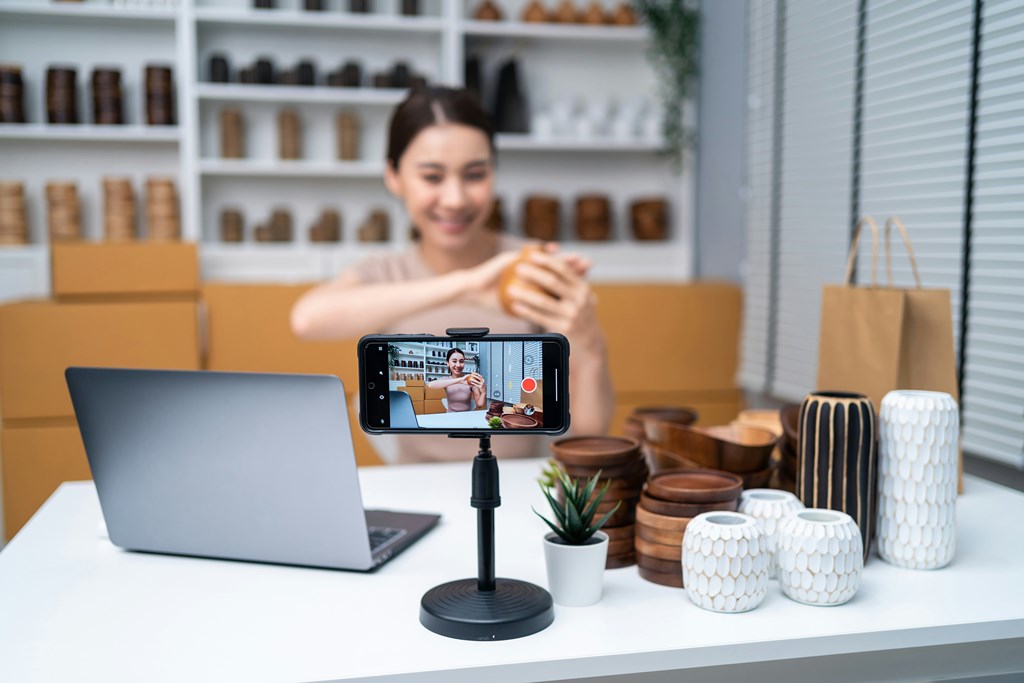
What you need before you start
Before installing plugins, define the basics.
A live webcam stream has more moving parts than a normal website page. Video quality, audio, lighting, upload speed, streaming protocol, hosting, and chat moderation all affect whether people stay, pay, and come back.
Camera
You can start with a good HD webcam, but the right choice depends on your format.
For basic streams, a modern 1080p webcam is enough. For premium sessions, product demos, paid performances, coaching, or expert calls, better camera quality can make the experience feel more professional.
The camera should produce a clean image in normal lighting. If the picture is dark, noisy, or unstable, viewers may leave before they even test the chat.
Microphone
Audio matters more than many beginners expect.
A viewer may forgive a slightly imperfect image. Bad sound is harder to tolerate. Use a separate USB microphone or lavalier microphone if possible. Avoid relying on the tiny built-in microphone inside a laptop unless you are only testing.
Lighting
Good lighting can make a cheap camera look better. Bad lighting can make an expensive camera look amateur.
Use soft front lighting. Avoid strong backlighting from windows. Keep the face or subject evenly lit. If the stream is part of a paid experience, lighting is not decoration. It is part of conversion.
Internet connection
Your upload speed is critical.
Download speed helps you watch content. Upload speed helps you broadcast. For live webcam streaming, the connection should be stable, not just fast on a speed test.
Use wired Ethernet when possible. Wi-Fi can work, but it is more likely to create drops, jitter, or quality changes.
| Stream quality | Typical use case | Practical advice |
|---|---|---|
| 720p | Testing, small events, low-bandwidth users | Good for early MVPs and mobile audiences |
| 1080p | Most professional webcam streams | Better for paid sessions, coaching, creator streams, and premium rooms |
| 4K | High-end production | Usually unnecessary for interactive webcam businesses and harder to deliver reliably |
Do not chase 4K unless your business really needs it. For live interaction, stable 1080p with clear audio is usually better than unstable ultra-high resolution.
Encoding software
For simple browser-based streaming, you may not need an encoder. You can stream directly from a webcam if your platform supports it.
For more control, use OBS.
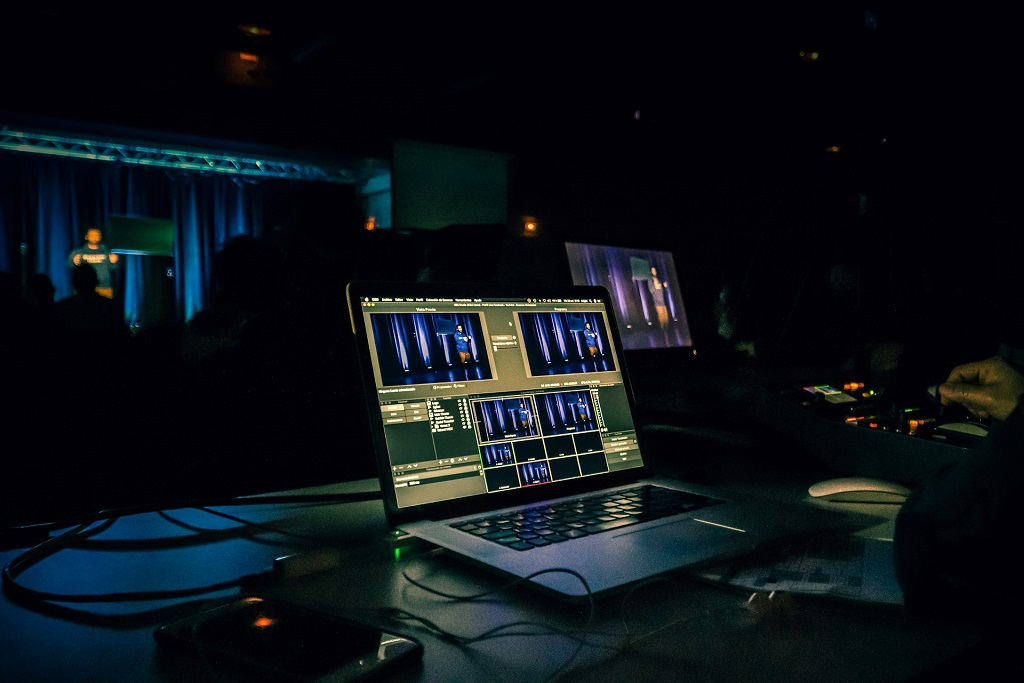
OBS lets you combine camera, microphone, screen capture, overlays, scenes, and bitrate settings. It is useful when you want a polished stream or need to send RTMP output to a streaming provider.
The common setup is simple: get the server URL and stream key from your provider, paste them into OBS, test the output, and start streaming.
Hosting and server infrastructure
This is where many WordPress projects run into trouble.
A normal shared WordPress hosting plan is designed for pages, images, plugins, and database requests. It is not designed to serve live video to many viewers in real time.
Some plugins can help you manage streams from WordPress, but the actual video delivery still needs streaming infrastructure. VideoWhisper’s plugin documentation points users toward a WebRTC/RTMP/HLS streaming account or deploying a WebRTC server on a VPS for self-hosting.
For a serious project, consider:
- a VPS or dedicated server;
- managed streaming provider;
- WebRTC server;
- RTMP/HLS delivery;
- CDN support;
- bandwidth costs;
- scaling plan for viewer spikes.
If your business model depends on live video, infrastructure is not a technical detail. It is part of the product.

WebRTC vs RTMP vs HLS: which one do you need?
Streaming technology can sound complicated, but the basic idea is simple.
Different protocols solve different problems.
| Technology | Best for | Latency | Complexity | WordPress fit |
|---|---|---|---|---|
| WebRTC | Real-time webcam interaction, private video rooms, low-latency chat | Very low | Medium to high | Good when supported by a plugin or custom platform |
| RTMP | Sending video from OBS to a server/provider | Low to medium | Medium | Common for encoder workflows |
| HLS | Scalable playback to larger audiences | Higher than WebRTC | Medium | Good for public streams and recorded playback |
| Embedded player | Simple public streams | Depends on provider | Low | Easiest for beginners |
WebRTC
WebRTC is usually the best fit for interactive live video. If users need to react in real time, chat with the host, or join private sessions, low latency matters.
This is why WebRTC is common in video chat, private rooms, and real-time communication products.
RTMP
RTMP is often used to send the stream from OBS to a streaming server or provider.
It is not usually the final playback format for modern browsers. Instead, it is a reliable input method. OBS sends the stream to the server, then the server converts or delivers it to viewers through other technologies.
HLS
HLS is useful when you need scalable playback. It works well across browsers and devices, especially for larger audiences.
The tradeoff is latency. For a concert, class, or public broadcast, a delay may be fine. For a paid private webcam session, too much delay can feel awkward.
Embedded streams
Embeds are easiest. You copy a player code and paste it into WordPress.
The problem is control. Embeds are fine for testing, but they rarely give you the full business logic needed for paid live webcam monetization.
How to start a live webcam stream with chat on WordPress: setup plan
Here is the practical flow.
1. Define the business model first
Do not start with the plugin.
Start with the money flow.
Ask:
- Is the stream free or paid?
- Do users need accounts?
- Will there be subscriptions?
- Will viewers tip?
- Will there be private sessions?
- Will the stream be public, members-only, or pay-per-view?
- Do you need pay-per-minute billing?
- Will there be one host or many?
- Do you need performer payouts?
- Do you need recorded shows or replays?
- Do you need mobile-first UX?
A simple public stream and a paid private webcam business need different architecture.
2. Choose your streaming method
If this is an early test, start with an embed or plugin.
If this is a serious business, plan for external streaming infrastructure or a dedicated platform.
| Business goal | Recommended starting point |
|---|---|
| Free public stream | Embedded player |
| Paid webinar or one-time event | WordPress plugin with pay-per-view or external provider |
| Member-only live show | Membership plugin plus streaming provider |
| Creator fan live sessions | WordPress MVP or dedicated monetization platform |
| Pay-per-minute private webcam sessions | Dedicated live webcam platform |
| Multi-performer webcam business | Dedicated live webcam platform |
| Coaching or consultations by appointment | Scrile Meet or appointment-based video platform |
3. Set up the stream source
If you use a webcam-only browser stream, choose the correct camera and microphone inside the streaming interface.
If you use OBS:
- install OBS;
- add your camera as a video source;
- add your microphone as an audio source;
- create a simple scene;
- get your stream URL and key from the streaming provider;
- add them in OBS settings;
- run a private test.
Do not skip testing. OBS itself recommends testing settings before jumping into a first stream or recording.
4. Add the player to WordPress
Depending on your setup, you may:
- paste an embed code into a page;
- use a shortcode from a plugin;
- create a custom channel page;
- restrict the page with membership rules;
- place the player above or beside the chat.
For desktop, a video-left and chat-right layout often works well. For mobile, the video should usually appear first, with chat below or in a collapsible panel.
5. Add live chat
You have several options.
A basic customer-support chat plugin is fine for simple communication, but it may not feel like a real community chat. A live stream needs fast messages, moderation, user identity, spam control, and a layout that works beside video.
For a paid site, chat should usually be connected to user accounts. Anonymous chat may work for open events, but it is weaker for moderation and monetization.
Consider:
- who can chat;
- whether guests can watch but not write;
- whether chat is public or members-only;
- whether moderators can delete messages;
- whether users can be muted or banned;
- whether chat logs are saved;
- whether chat works well on mobile.
6. Add access control
If the stream is paid, do not rely on a hidden page link.
Use real access control:
- login required;
- subscription required;
- pay-per-view purchase required;
- role-based permissions;
- private room access;
- expiring access after the event;
- clear refund terms.
A paid live stream is a transaction. The user should understand what they bought, when they can access it, and what happens if the stream fails.
7. Test the full user journey
Test as the broadcaster, admin, paid viewer, free viewer, and logged-out visitor.
Check:
- camera and microphone;
- stream delay;
- chat speed;
- login;
- checkout;
- paid access;
- mobile layout;
- stream page loading speed;
- email notifications;
- refund flow;
- moderator tools;
- replay or archive logic;
- backup plan if the stream fails.
Most failed launches are not caused by one big technical disaster. They are caused by small broken steps in the user journey.

How to create live chat in WordPress
If your goal is basic chat, you can install a WordPress live chat plugin from the WordPress dashboard, activate it, configure the settings, and place it on the right pages.
That works for support chat.
But for a live webcam stream, you should think more carefully.
A support chat plugin is usually designed for one visitor talking to a site operator. A live stream chat is usually many viewers reacting in real time. Those are different use cases.
For live webcam streaming, look for:
- real-time message updates;
- user names or profiles;
- moderation controls;
- mobile-friendly layout;
- spam protection;
- member-only chat;
- paid access compatibility;
- chat history settings;
- private chat option if needed.
If your stream is public and free, a simple chat widget can work. If users pay to participate, chat becomes part of the product experience. It should not feel like an afterthought.
How to monetize a WordPress live webcam stream
Monetization should shape the technical setup.
If you want to earn from live webcam streaming, you need more than a video player. You need a business model that viewers understand and a payment flow that does not interrupt the live moment.
| Monetization model | How it works | WordPress difficulty | Best fit |
|---|---|---|---|
| Free stream with paid upsells | Viewers watch free, then pay for private access, replays, or premium content | Medium | Audience building |
| Subscriptions | Users pay monthly for access to live sessions or member content | Medium | Creator communities, expert content |
| Tips | Viewers send money during the live stream | Medium to high | Performer streams, creator shows, fan engagement |
| Pay-per-view | Users pay for one event or one stream | Medium | Classes, special shows, events |
| Pay-per-minute | Users are charged based on session duration | High | Private webcam sessions, consultations |
| Tokens or credits | Users buy credits and spend them on chat, tips, or sessions | High | Webcam platforms and creator marketplaces |
| Paid replays | Live sessions become video-on-demand products | Medium | Courses, shows, premium archives |
Subscriptions
Subscriptions are usually the easiest serious monetization model to run through WordPress.
You can use membership plugins or WooCommerce subscriptions to restrict access to live stream pages. This works for weekly shows, paid communities, courses, fitness sessions, creator clubs, or premium Q&A events.
The challenge is retention. Subscribers need a reason to stay. A live calendar, replays, member-only chat, and exclusive content help.
Pay-per-view
Pay-per-view is useful for special events.
A user pays once and gets access to one stream. This model is simpler than pay-per-minute because the price is fixed before the stream starts.
It works for:
- workshops;
- masterclasses;
- special creator shows;
- product demos;
- paid interviews;
- live performances;
- webinars.
Tips
Tips are powerful because they monetize attention in the moment.
But tips need a smooth flow. If users must leave the stream page, re-enter card details, or wait for a slow checkout, the emotional moment is gone.
For tipping to work well, the payment experience should be fast, visible, and connected to the live interaction.
Tokens or credits
Tokens are common in webcam-style businesses because they make small purchases easier.
Instead of charging a card for every action, users buy credits in advance and spend them during the live experience. This can support tipping, private sessions, paid messages, content unlocks, and other microtransactions.
WordPress can be customized to support credit logic, but this is rarely simple. You need balance tracking, transaction history, fraud controls, refunds, and clear terms.
Pay-per-minute private sessions
Pay-per-minute is one of the hardest models to build properly on WordPress.
You need:
- accurate session timing;
- wallet or balance logic;
- automatic charging;
- private room access;
- session start and end rules;
- minimum balance checks;
- performer availability;
- payout calculation;
- dispute handling;
- anti-fraud logic.
This is where WordPress often becomes fragile. A dedicated live webcam platform is usually a better fit.
Paid recorded shows
Do not think of live sessions as one-time revenue only.
A recorded stream can become:
- paid replay;
- subscription library content;
- private archive;
- premium bundle;
- training material;
- teaser for future live sessions.
This is especially useful if your stream has educational, entertainment, coaching, or creator-community value.

Security, privacy, and anti-recording
Live webcam businesses need trust.
The viewer needs to trust that payment works. The host needs to trust that access is controlled. The platform owner needs to protect the business from abuse, chargebacks, spam, leaks, and technical instability.
Access control
Use clear access rules.
For example:
- public visitors can see a preview;
- free members can join public chat;
- paid members can watch full streams;
- premium members can access replays;
- private-session buyers can enter private rooms;
- moderators can manage chat;
- admins can manage payments and users.
Do not give every role full access. Strong role separation protects both the business and the creators.
Anti-recording reality check
No web platform can fully stop screen recording.
A user can record their screen with external software, another device, or browser tools. So the goal is not magical prevention. The goal is risk reduction.
Use:
- login-required access;
- visible or hidden watermarking;
- user-level tracking;
- clear terms of service;
- DMCA process;
- limited replay access;
- manual moderation;
- restricted downloads;
- fast response to reports.
Do not promise creators or hosts that recording is impossible. Promise a serious protection strategy.
Payment security
Use SSL, trusted payment providers, clear billing terms, and visible purchase confirmations.
For webcam and live content businesses, payment reliability is part of user trust. If viewers are charged incorrectly, cannot access what they bought, or do not understand the billing model, support problems will grow quickly.
Moderation
Live chat can become messy fast.
Plan moderation before launch:
- blocked words;
- spam limits;
- mute and ban tools;
- report buttons;
- moderator roles;
- manual review for flagged behavior;
- user identity rules;
- private chat controls.
For adult or sensitive niches, moderation and compliance are even more important. Keep business operations clean, documented, and consistent.

Common WordPress limitations for live webcam businesses
WordPress can help you launch, but it has predictable limits.
Hosting limits
Live video is heavy.
Even if the video is not served directly from WordPress, live stream pages can still become slow when many users load the page, chat, log in, pay, and refresh. Shared hosting is usually not enough for serious live video projects.
Plugin conflicts
A live webcam setup may involve:
- streaming plugin;
- chat plugin;
- membership plugin;
- payment plugin;
- WooCommerce;
- caching plugin;
- page builder;
- security plugin;
- custom theme.
Each plugin may update on a different schedule. Conflicts can break checkout, access rules, chat display, or the stream page.
Monetization limits
WordPress handles subscriptions and pay-per-view better than tokens or pay-per-minute sessions.
If your model depends on small real-time purchases, user balances, performer payouts, and private rooms, you will likely need custom development.
Mobile UX limits
Most live streaming traffic eventually becomes mobile-heavy.
A stream page that looks good on desktop may feel cramped on mobile. The player, chat, payment button, profile info, and private session CTA must fit into a clean layout.
Plugins do not always solve this elegantly.
Admin and operations limits
A serious webcam business needs more than a public-facing page.
You may need:
- performer management;
- customer management;
- payout tracking;
- revenue reports;
- private session history;
- fraud monitoring;
- content approval;
- affiliate tracking;
- support workflows;
- moderation logs.
WordPress admin can be extended, but it was not designed specifically for webcam platform operations.
When should you move beyond WordPress?
Move beyond WordPress when the business model becomes more important than the website.
That moment usually comes when:
- users are paying for live interaction;
- private sessions are part of your revenue;
- you need more than one host or performer;
- you need tipping, tokens, or pay-per-minute billing;
- chat moderation becomes a daily task;
- payment flow affects conversion;
- users expect a smooth mobile experience;
- you need better analytics;
- you are spending more time fixing plugins than growing the platform.
WordPress is a good starting point for testing demand. It is not always the right foundation for a monetized live webcam business.

WordPress vs dedicated live streaming platform
| Feature or need | WordPress setup | Dedicated live streaming platform |
|---|---|---|
| Fast MVP | Strong | Medium |
| Blog and SEO content | Strong | Usually secondary |
| Simple embedded stream | Strong | Strong |
| Basic member access | Strong | Strong |
| Live chat | Medium | Strong |
| Private 1-on-1 sessions | Weak to medium | Strong |
| Pay-per-minute billing | Weak | Strong |
| Tips and tokens | Medium to weak | Strong |
| Multi-performer management | Weak | Strong |
| Payout tracking | Weak | Strong |
| Moderation tools | Medium | Strong |
| Streaming scalability | Depends on infrastructure | Built around the use case |
| White-label business control | Medium | Strong |
| Long-term webcam platform operations | Weak to medium | Strong |
The simplest rule is this:
Use WordPress if you are validating the idea.
Use a dedicated platform if live monetization is the business.
Build a scalable live webcam platform with Scrile Stream
If your goal is only to place a webcam stream on a WordPress page, a plugin or embed may be enough.
But if your goal is to build a live webcam business, the real problem is bigger. You need a system that supports streaming, chat, payments, private sessions, user roles, moderation, and monetization from the start.
That is where Scrile Stream becomes relevant.
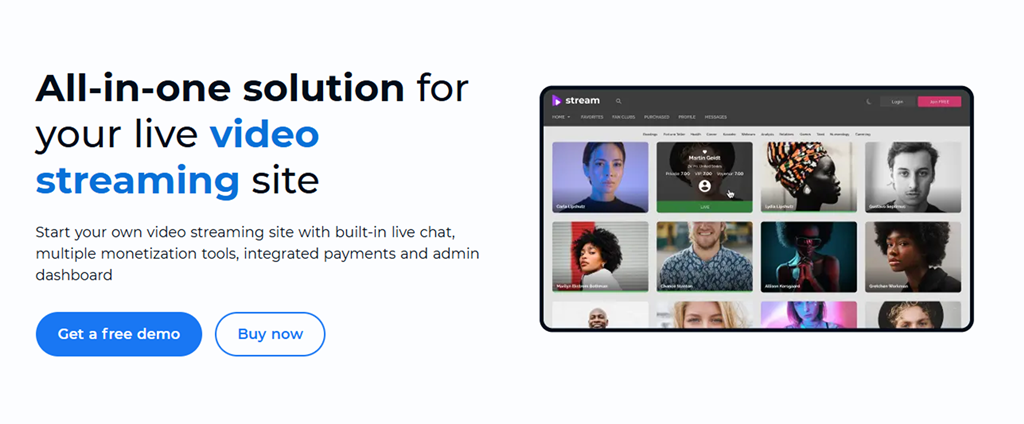
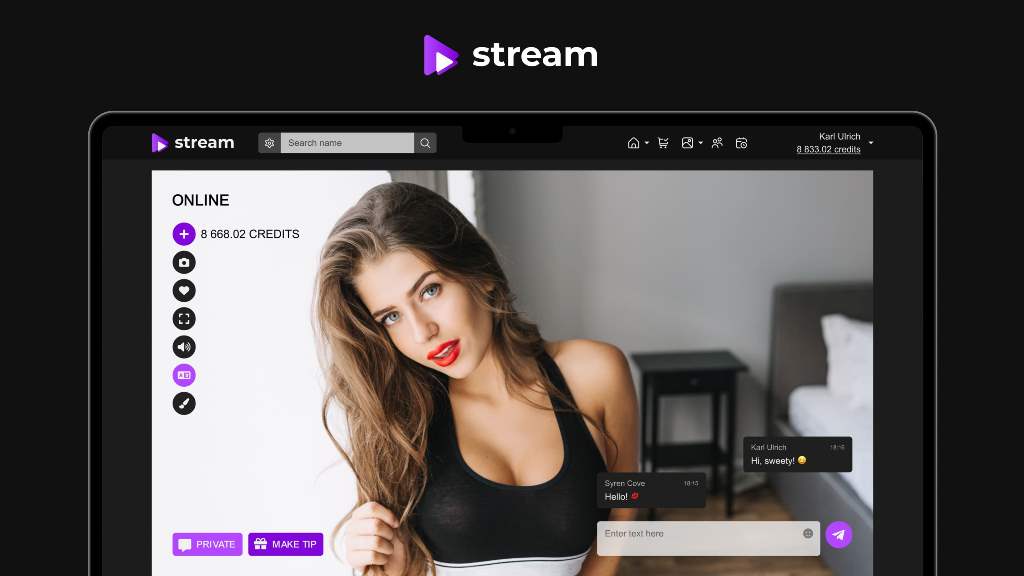
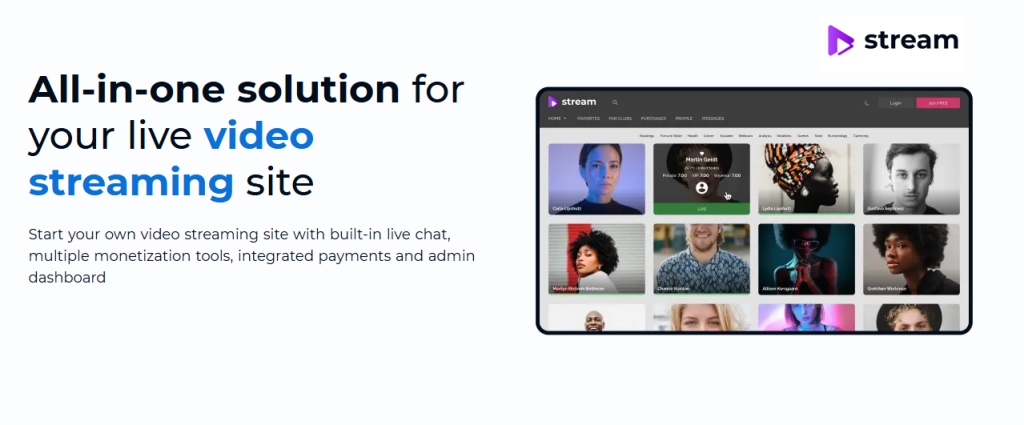
Scrile Stream is a white-label webcam and live video platform for launching branded streaming sites. It is positioned as an all-in-one solution with live chat, multiple monetization tools, integrated payments, and an admin dashboard.
Instead of trying to turn WordPress into a full webcam platform with many plugins, Scrile Stream gives you a product foundation built around live interaction and monetization.
Why WordPress is often only the first step
WordPress is flexible, but flexibility can become complexity.
At first, the setup looks manageable:
- one plugin for streaming;
- one plugin for chat;
- one plugin for payments;
- one plugin for memberships;
- one plugin for security;
- one page builder for layout.
Then the business starts growing.
You need private shows. Then tipping. Then subscriptions. Then content sales. Then performer accounts. Then payouts. Then chat moderation. Then mobile UX improvements. Then analytics. Then affiliate tracking. Then custom payment logic.
At that point, the project is no longer “a WordPress site with a stream.” It is a live video platform.
What Scrile Stream gives you instead
Scrile Stream is closer to the actual business model.
Its webcam-site product page lists revenue features such as private 1-on-1 shows, pay-per-view sessions, tipping, content sales, and subscriptions. It also lists free and paid chats, tip goal chat, private chat, voyeur chat, SSL/GDPR compliance, IP geo blocking, statistics, payouts, transactions, HD low-latency streaming, multilingual support, and mobile-friendly experience.
That matters because these features are not separate afterthoughts. They are part of the platform logic.
For a business owner, this can reduce the risk of building a fragile stack of disconnected plugins.
When Scrile Stream makes more sense than WordPress
Scrile Stream is a better fit when you want:
- your own branded webcam site;
- private 1-on-1 shows;
- paid live chats;
- tipping;
- subscriptions;
- content sales;
- performer or host management;
- admin control;
- payment flow;
- payout tracking;
- low-latency live video;
- mobile-friendly user experience;
- a platform that can grow beyond an MVP.
It is especially relevant if the site is meant to earn directly from live interaction.
What about consultations, coaching, or appointment-based calls?
If your business is less about open live webcam rooms and more about scheduled consultations, appointments, expert calls, coaching, or tele-advice, Scrile Meet may be a better fit.
Scrile Meet is positioned for online consultation platforms that need scheduling, communication, session delivery, payments, and admin control in one place.
So the product choice depends on the business model:
- use Scrile Stream for live webcam platforms, paid streaming, private shows, tips, and subscription-based video interaction;
- use Scrile Meet for appointment-based consultations, coaching, expert sessions, and scheduled service calls.
For the topic of live webcam streaming with chat, Scrile Stream is the primary fit.
Conclusion
You can start a live webcam stream with chat on WordPress in several ways.
For a simple public broadcast, embed a stream and add a chat widget. For a more controlled site, use a WordPress live streaming plugin. For a stronger setup, connect WordPress to external streaming infrastructure and manage access through memberships or custom logic.
But if your goal is a real webcam business, the challenge is not only streaming. It is monetization, payments, private sessions, chat moderation, user roles, mobile experience, analytics, and long-term control.
WordPress can help you test the idea. A dedicated platform helps you build the business.
If you are ready to move beyond plugins and create a branded live webcam platform with built-in monetization, private sessions, live chat, payments, and admin control, Scrile Stream is the stronger path to explore.
FAQ
How do I start a live webcam stream with chat on WordPress?
Choose a streaming method first. You can embed a stream from a third-party provider, use a WordPress live streaming plugin, or connect OBS to streaming infrastructure and place the player on a WordPress page. Then add live chat through a plugin, membership-based chat, or real-time chat solution. If the stream is paid, add access control and test the full payment-to-viewing flow.
Can I live stream from a webcam directly on WordPress?
Not directly through WordPress core. WordPress does not act as a streaming server by itself. You need a plugin, embedded player, streaming provider, WebRTC server, RTMP/HLS setup, or another live video tool. WordPress can host the page and manage users, but the video delivery usually comes from separate streaming technology.
How do I create a live chat in WordPress?
For basic chat, install a live chat plugin from the WordPress dashboard, activate it, configure the settings, and display it on the stream page. For a live webcam stream, choose a chat solution that supports real-time messages, user identity, moderation, mobile layout, and member-only access if needed.
How do I live stream in WordPress using a streaming provider?
Create a live stream in your streaming provider account, copy the stream URL and stream key, add them to OBS or your encoder, start the broadcast, and embed the provider’s video player on your WordPress page. If the stream is private or paid, protect the page with membership or pay-per-view access rules.
How do I set up a live streaming webcam?
You need a webcam or camera, microphone, lighting, stable upload speed, streaming software or browser-based streaming, and a destination platform. For simple streaming, browser webcam streaming may be enough. For more control, use OBS with a stream URL and stream key.
Do I need OBS for WordPress live streaming?
Not always. If your plugin or provider supports browser webcam streaming, you can stream without OBS. But OBS gives you more control over video sources, audio, scenes, overlays, bitrate, and stream quality. It is useful for professional broadcasts.
What is better for WordPress webcam streaming: WebRTC, RTMP, or HLS?
Use WebRTC when real-time interaction and low latency matter. Use RTMP when sending video from OBS to a streaming server. Use HLS when scalable playback is more important than ultra-low latency. Many setups use more than one technology.
Can I monetize a WordPress live webcam stream?
Yes, but the difficulty depends on the model. Subscriptions and pay-per-view are easier. Tips, tokens, credits, and pay-per-minute private sessions are harder because they require more advanced payment and session logic.
Is shared WordPress hosting enough for live video?
Usually not for serious live streaming. Shared hosting may handle the WordPress page, but live video delivery needs streaming infrastructure, a provider, WebRTC/RTMP/HLS server, CDN, or dedicated hosting setup.
Can I stop users from recording my live webcam stream?
No platform can fully prevent screen recording. You can reduce risk with login-required access, watermarking, user tracking, clear terms, restricted replays, moderation, and takedown processes, but you should not promise complete anti-recording protection.
When should I move from WordPress to a dedicated live webcam platform?
Move when live monetization becomes central to the business. If you need private sessions, tips, subscriptions, pay-per-minute billing, performer accounts, payouts, moderation, and scalable streaming, a dedicated platform like Scrile Stream will usually be more practical than a plugin-based WordPress stack.